SOP & Process Documentation
The 9 best screen recording tools for SOPs in 2027 (we compared them)


In this article
The best screen recording tools for SOPs turn one recording into something your team can actually follow, and Whale is our top pick because it gives you the video and the written SOP from that one recording, inside SOP software your team already trains in.
The best screen recording tools for SOPs in 2027 are
- Whale is our top pick for teams that want one recording to become an embedded video, a numbered written SOP and a training flow, whether you record live or upload a video you already have.
- Trupeer, Tango, Kommodo and Clueso turn your recording and narration into a written guide, with video alongside in most cases, so they suit teams that want both from one capture.
- Scribe and Guidde capture your clicks in the browser and build a screenshot guide or a narrated video guide, which is quick for browser tasks.
- Loom and Camtasia record and edit video well, but the written SOP is an add-on, not the starting point.
Here's the test I use for every tool on this list. Record the process once. Do you get a video and a written SOP your team can follow, or do you get a video and a to-do list? Most tools pass half the test. A few pass all of it.
Teams usually go looking for a screen recording tool for SOPs for three reasons:
- Writing SOPs from memory takes hours, and the steps people forget are the ones that trip up the next hire.
- They already have a folder of Zoom and Loom walkthroughs nobody rewatches.
- They want AI to do the writing, so the expert just does the task and talks.
Before we continue we want to disclose that Whale publishes this page and is one of the tools on it. But we aim to keep fair practice. Every price comes from the vendor's own pricing page, checked in November 2026. Every tool, Whale included, gets the same fields and real cons. And where another tool is the better pick, we say so.
Key takeaways
- One recording, two outputs is the real test. Whale, Trupeer, Clueso and Kommodo give you a video and a written guide from the same recording. Scribe gives you a screenshot guide, Tango a click-by-click guide, and Loom a video first.
- Whale is our top pick. Coral, Whale's AI assistant, writes the numbered SOP from your recording in seconds and keeps the video embedded on the same page, ready to assign in a training flow.
- Uploading an old video is not a given. Whale, Trupeer, Clueso and Kommodo convert a video you already have. Tango's help center says you can't upload your own MP4, and Guidde keeps MP4 uploads for its Business plan.
- Narration beats clicks for the "why". Click-capture tools record what you did. Narrated recordings also capture why you did it, which is the part a new hire actually needs.
- Loom's SOP drafts need its AI plan. Loom's AI workflows, which draft SOPs from a video, sit on Business + AI and write in English only.
The best screen recording tools for SOPs compared
All prices in US dollars, checked in November 2026. "Starting paid price" is the cheapest paid plan billed yearly.
| Tool | Primary input | Main output | Free plan | Starting paid price | G2 rating |
|---|---|---|---|---|---|
| Whale | Live screen and voice recording, or video upload | Embedded video plus numbered written SOP, ready for training flows | Yes: 1 creator, up to 10 members | $299/month billed yearly (3 creators) | 4.8/5 |
| Trupeer | Screen recording or video upload | AI-edited video plus written SOP with screenshots | Yes (with watermark) | $40/month billed yearly (1 creator) | Not rated |
| Tango | Live software workflow | Visual step-by-step guide | Yes: 5 shared workflows | $15/user/month billed yearly (3+ users) | 4.7/5 |
| Kommodo | Live screen recording | Video plus editable screenshot guide | Yes: 3 AI guides, recordings kept 60 days | $9/person/month billed yearly | Not rated |
| Clueso | Chrome extension capture or video upload | AI video with voiceover plus written guide | Yes (with watermark) | $40/month billed yearly (1 user) | 4.8/5 |
| Scribe | Live browser and app clicks | Written guide with screenshots | Yes: browser only | $13/seat/month billed yearly (5 seats minimum) | 4.8/5 |
| Guidde | Browser extension capture | AI video with voiceover plus step-by-step guide | Yes: up to 25 videos, web apps only | $19/creator/month billed yearly | 4.8/5 |
| Loom | Screen and webcam recording | Video plus AI-drafted doc on Business + AI | Yes: 25 videos, 5 minutes each | $15/user/month billed yearly | 4.7/5 |
| Camtasia | Screen recording or imported video | Edited video, quizzes and SCORM, plus Snagit step guides | Free trial of each app | $39/year (Starter, watermarked editor exports) | 4.6/5 |
What is a screen recording SOP?
A screen recording SOP is a standard operating procedure built from a recording of someone doing the task, instead of from memory. The expert records their screen, talks through what they do and why, and a tool turns that into numbered steps, often with screenshots and the video alongside.
The recording is the raw material, not the SOP. A good tool gets you a solid first draft in minutes. A great one also puts that SOP where people will find it, assign it and keep it current. For more on getting the basics right, browse our SOP and process documentation guides.
If you want the video and the written SOP from one recording, start with Whale.
1. Whale
Best for turning one recording into a video, a written SOP and a training flow
G2 rating: 4.8/5
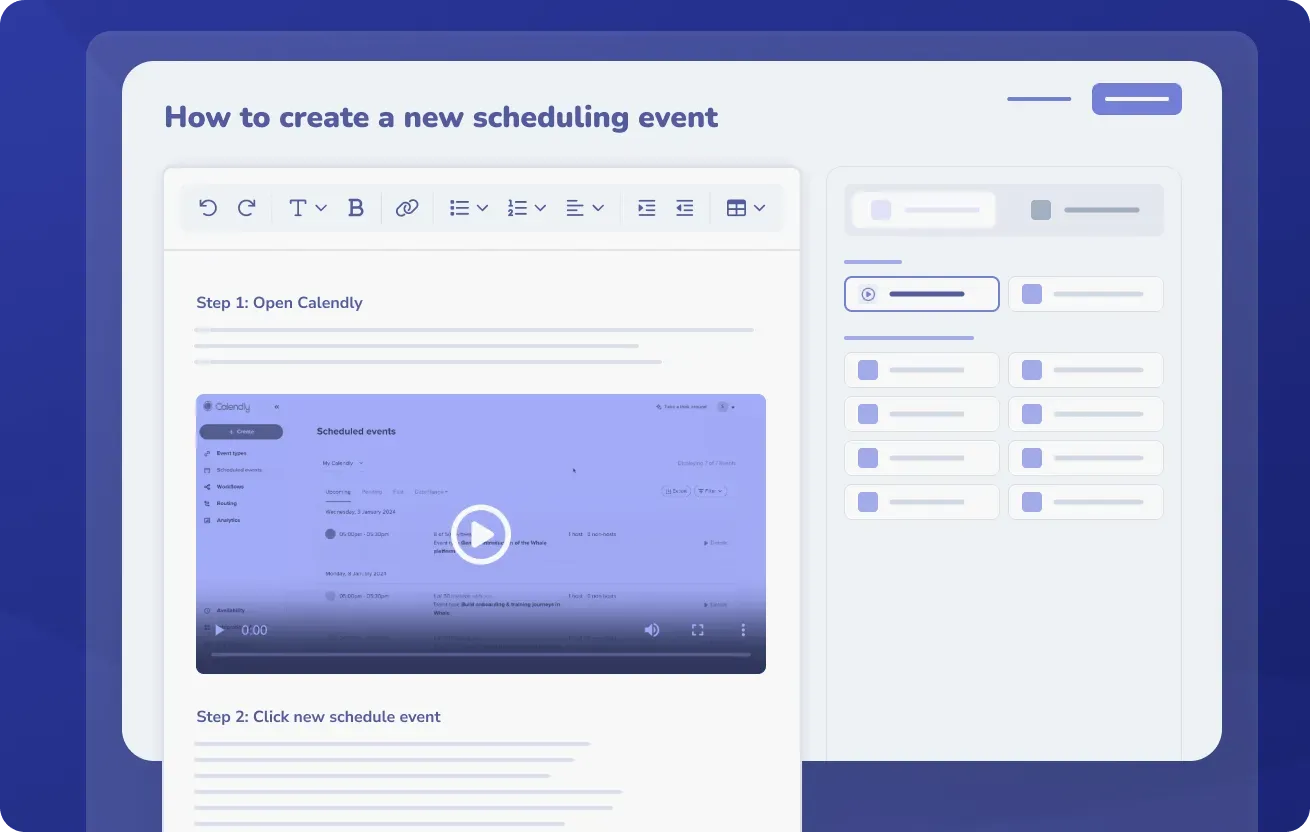
Whale comes closer to the one-recording test than most tools here. Its video screen recorder captures your screen and audio, and when you stop recording, Whale's AI assistant, Coral, writes a numbered step-by-step guide from your narration. You get an embedded video and a written guide from one recording.
And if you already have the recording, you don't have to do the task again. Whale's Video to SOP converter takes an MP4, MOV or WebM file, from a screen recording to a phone video of someone on the warehouse floor, and Coral turns the spoken steps into a written SOP with the video embedded at the top. Then the SOP drops into your knowledge base, where you can assign it, quiz people on it and track who finished it. That last part is where most recording tools stop and Whale keeps going. It's the gap between making an SOP and getting people trained on it, and if you're still comparing broader AI writing tools, our guide to AI SOP tools covers that side.
Key features of Whale
- Video screen recorder: record your screen and voice from any Whale card, and Coral writes the step-by-step guide when you stop
- Video to SOP: upload any standard video file and get a numbered, editable SOP with the video embedded
- Coral, Whale's AI assistant: drafts SOPs in seconds, answers your team's questions from your approved SOPs with the source, works in Whale, on mobile and in Slack by messaging @Whale, and writes quizzes
- Training flows, AI quizzes, checklists, analytics and reporting
- CoPilot, the browser extension that surfaces the right SOP inside the tools your team already uses
- Whale MCP: connect the AI tools your team already uses, like Claude, Cursor or Gemini, so they work from your real documentation
- Video editor and AI voiceovers, version history and e-signatures on completion
Whale pricing
- Free: $0, 1 creator, up to 10 members, screen recorder, Video to SOP converter, checklists, mobile access and Coral
- Scale: $299/month billed yearly, 3 creators included, unlimited documentation, training flows, AI quizzes, PDF and Word export, Whale MCP
- Advance: $599/month billed yearly, 5 creators included, adds e-signatures, video editor and AI voiceovers, enforced SSO and granular permissions
- Enterprise: custom, adds approval flows, automatic redaction, SCIM and HRIS integrations, API access
Whale pros
- One recording becomes an embedded video and a written SOP, and the same SOP can go straight into a training flow with an AI-generated quiz
- Works with recordings you already have, so your old Zoom and Loom walkthroughs become searchable SOPs
- Whale's MCP connects your company documentation to your AI tools, so your teams get accurate answers
- Coral answers questions where people work, and you can even talk to Coral in Slack!
Whale cons
- Looking for a tool for one person? Whale's paid plans start with 3 creators, so solo creators will pay for seats they don't use.
- Permissions customization is limited below the Advance plan, and some customers find that restrictive when managing access across several teams.
Choose Whale if you want documentation and training in one place, you'd rather talk through a process than write it, and you want old recordings to become SOPs too.
AI video-to-SOP converters
These tools are best for voice and screen walkthroughs. You talk through the process, and AI turns the recording into a written guide, and in most cases a video too.
2. Trupeer
Best for polished AI-edited videos with a written SOP alongside
G2 rating: Not rated on G2
Trupeer takes a messy screen recording or an uploaded video, cleans up the audio and script, adds zoom-ins and AI voices, and writes a step-by-step document with screenshots at the same time. Trupeer pitches itself at "Software & Process Rollouts", so it leans toward teams rolling out new tools to a lot of people. It's the pick when the video has to look good enough to show the whole company.
Key features of Trupeer
- Upload an existing screen recording or record with the Chrome extension
- AI Doc Writer and Step Detection for written SOPs with screenshots
- AI voices and translation into other languages
- Brand Mirroring for on-brand videos and docs
- Export documents as DOC, PDF or Markdown and video as MP4 (Pro and up)
Trupeer pricing
- Free: $0, 1,000 AI credits a month, recordings up to 5 minutes, watermark on exports. The pricing card also says "Free for 10 days".
- Pro: $40/month billed yearly ($49 monthly), 1 creator seat
- Scale: $199/month billed yearly ($249 monthly), 3 creator seats
- Enterprise: custom
Trupeer pros
- Strong video polish: script clean-up, zooms and AI voices from a rough recording
- Takes uploads, so you don't have to redo a process you already recorded
Trupeer cons
- Usage runs on AI credits that don't roll over, and recordings are capped at 5, 10 or 15 minutes depending on the plan
- Capture runs through the Chrome extension, and Trupeer's site mentions no desktop app
3. Tango
Best for click-by-click guides you can narrate, with in-app guidance
G2 rating: 4.7/5
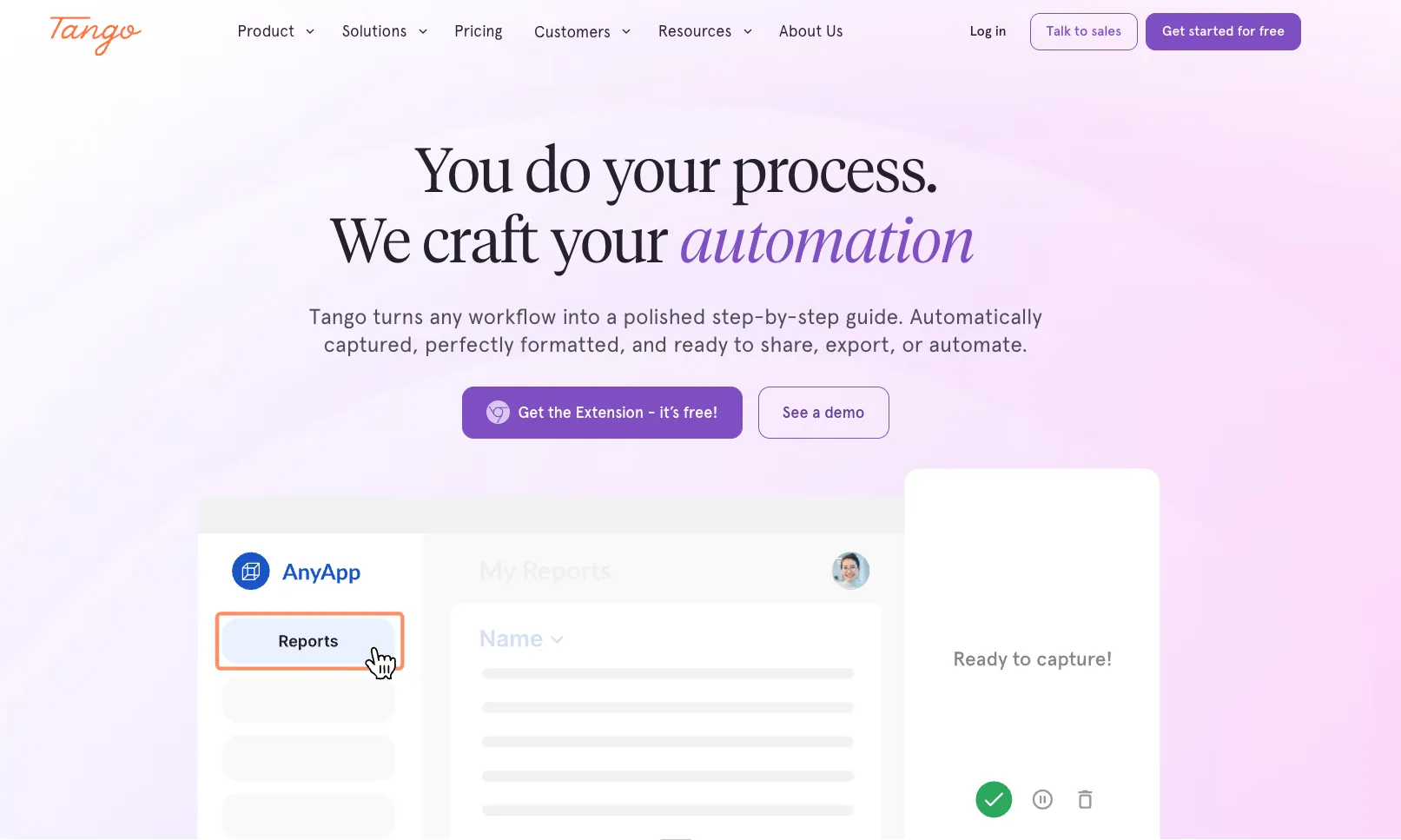
Tango captures your software workflow in real time as you click and talk, and builds visual, step-by-step instructions with pop-up guidance and viewer analytics on top. Its Voice Transcription turns what you say into written steps, and on Pro, Video Embeds can turn a workflow into a video with AI narration. Tango's own help center says you can't upload your own MP4, so plan on capturing the process live.
Key features of Tango
- Browser extension for Chrome and Edge, desktop capture on Pro
- Voice Transcription that turns what you say into written steps
- Guide Me and Pins for in-app guidance
- Video Embeds with optional AI narration on Pro and up
- Screenshot annotation and blurring, workflow translation in 15 languages
Tango pricing
- Free: $0, 5 shared workflows, browser capture, up to 10 users
- Pro: $22/user/month billed yearly ($30 monthly) for 1 to 2 users
- Pro Team: $15/user/month billed yearly ($20 monthly) for 3+ users
- Enterprise: custom
Tango pros
- Clean guides with in-app walkthroughs
- Voice transcription adds context to the clicks
Tango cons
- No upload of existing videos and no mobile app
- Upgrading to Pro means upgrading every member in the workspace
Weighing it up? See how Whale compares with Tango.
4. Kommodo
Best for a low-cost recorder that writes the guide for you
G2 rating: Not rated on G2
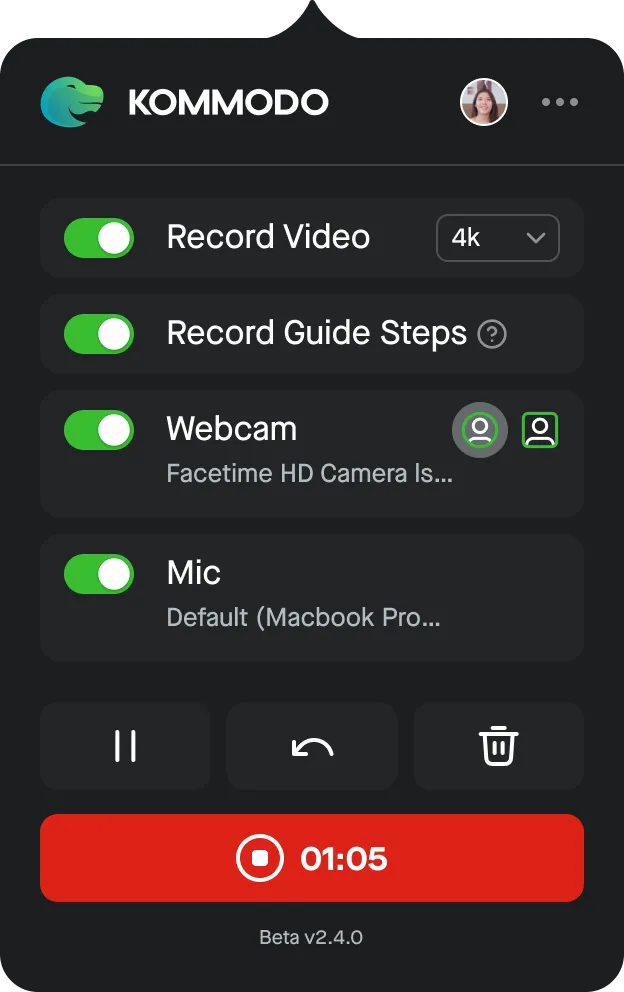
Kommodo calls itself "The AI Screen Recorder". You record a task with your voice, and it gives you a video walkthrough plus an editable written guide with screenshots. Its Guides mode tracks clicks, scrolls and page changes while you record, so the steps come from what you actually did.
Key features of Kommodo
- Guides that record steps with screenshots while you work
- Video to SOP tool for MP4, MOV or WebM files up to 1GB
- AI assistant and AI video search
- Apps for macOS, Windows, Chrome, iOS and Android
- Export guides as PDFs or publish them as web pages
Kommodo pricing
- Free: $0, 1 user, unlimited recordings kept for 60 days, 3 AI-generated guides
- Premium: $9/person/month billed yearly ($15 monthly)
Kommodo pros
- A paid plan under $10 per person a month, billed yearly
- Video and written instructions from the same recording
Kommodo cons
- On the free plan, recordings stay available for 60 days and shared guides show only the first 10 steps
- Uploading videos not recorded with Kommodo is a Premium feature, beyond the 3 free SOPs
5. Clueso
Best for AI voiceover videos and written guides from one project
G2 rating: 4.8/5
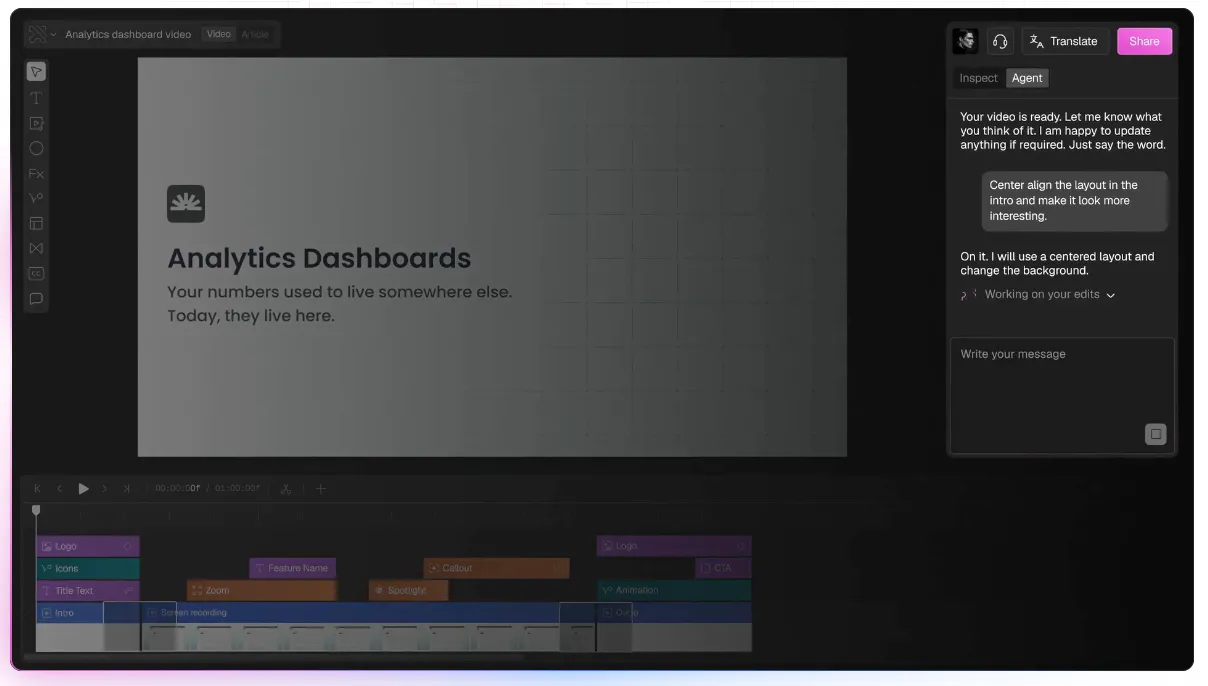
Clueso is a browser-extension recorder that processes audio and visuals at the same time. It generates a script, highlights clicks, zooms in on actions and exports a written guide. You can also upload an existing video or phone recording, which makes it one of the few tools here that handles both live capture and old footage.
Key features of Clueso
- Chrome extension that captures a tab, a window or the whole screen
- Upload existing videos or pick a file from Google Drive
- AI voiceovers and translation into 150+ languages
- Edit videos with AI chat
- Export guides as rich text, Markdown, HTML, DOCX or PDF on every plan
Clueso pricing
- Free: $0, 1 user, 10 minutes of video exports and 10 articles a month, watermark
- Solo: $40/month billed yearly ($50 monthly), 1 user
- Business: $120/month billed yearly for 2 users ($150 monthly), up to 10 users
- Enterprise: custom
Clueso pros
- Handles both uploads and live capture
- Guide exports in many formats, even on the free plan
Clueso cons
- Hard monthly caps: Solo gets 15 minutes of video and 15 articles a month
- Reviewer seats, SSO and SCORM are Enterprise only
Click-to-step capture tools
These tools are best for step-by-step documentation of browser and app tasks. They watch your clicks as you work and build the guide, as annotated screenshots or as a narrated video.
6. Scribe
Best for quick click-by-click guides for software
G2 rating: 4.8/5
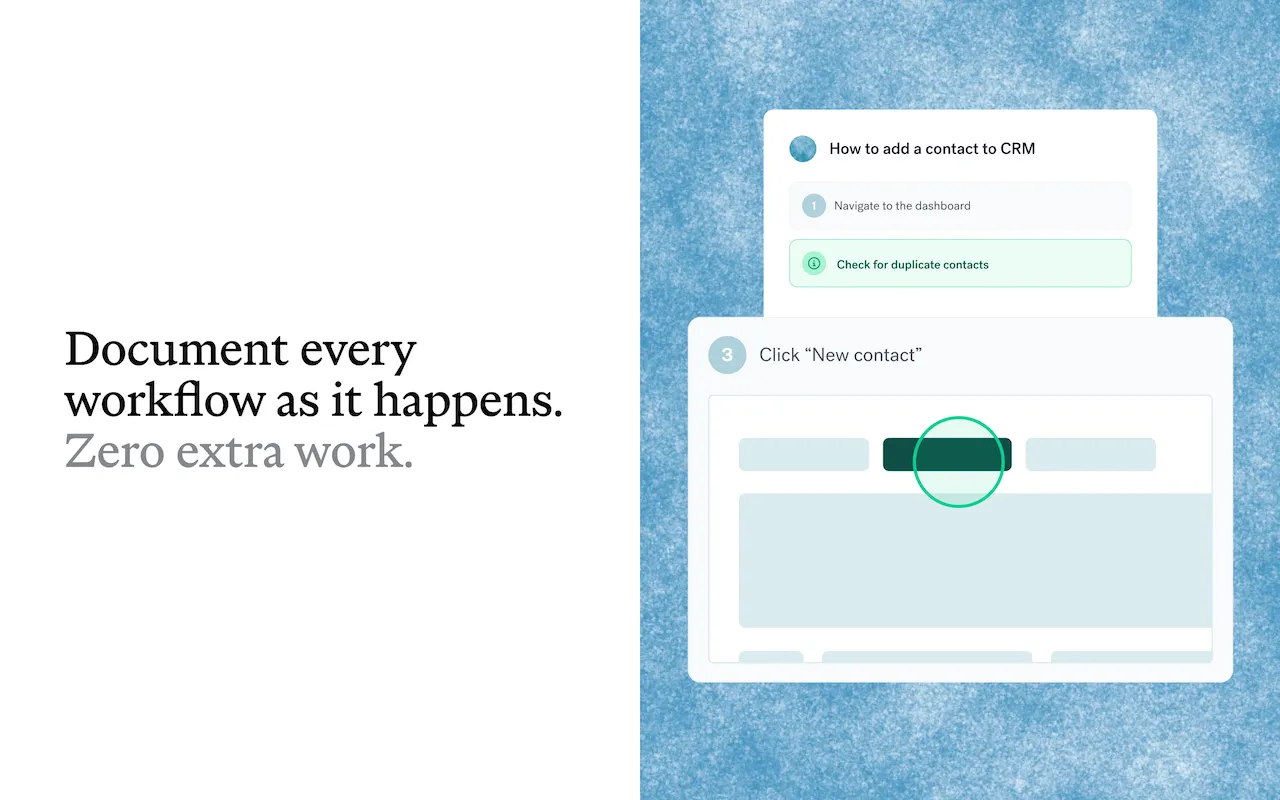
Scribe tracks your mouse clicks and keystrokes while you walk through a process and turns them into a written guide with annotated screenshots. It's the name most people know in this category, and it's fast. Scribe captures what you click, not a video file, so it suits browser and app workflows rather than footage you already have.
Key features of Scribe
- Browser extension for Chrome and Edge, plus a desktop app on Pro and Enterprise
- Autocapture, which records work without pressing start or stop
- Scribe AI for writing and editing guides
- Edit and redact screenshots
- Export to PDF, HTML, Markdown and Word on Pro and up
Scribe pricing
- Basic: free, browser only
- Pro Personal: $25/seat/month billed yearly ($35 monthly)
- Pro Team: $13/seat/month billed yearly ($17 monthly), 5 seats minimum
- Enterprise: custom
Scribe pros
- Very fast for documenting a browser task
- A free plan that's genuinely useful for small jobs
Scribe cons
- No upload of existing video files on Scribe's own pages
- The free plan is browser only, and desktop capture and exports need Pro
Weighing it up? See how Whale compares with Scribe.
7. Guidde
Best for narrated how-to videos built from browser captures
G2 rating: 4.8/5
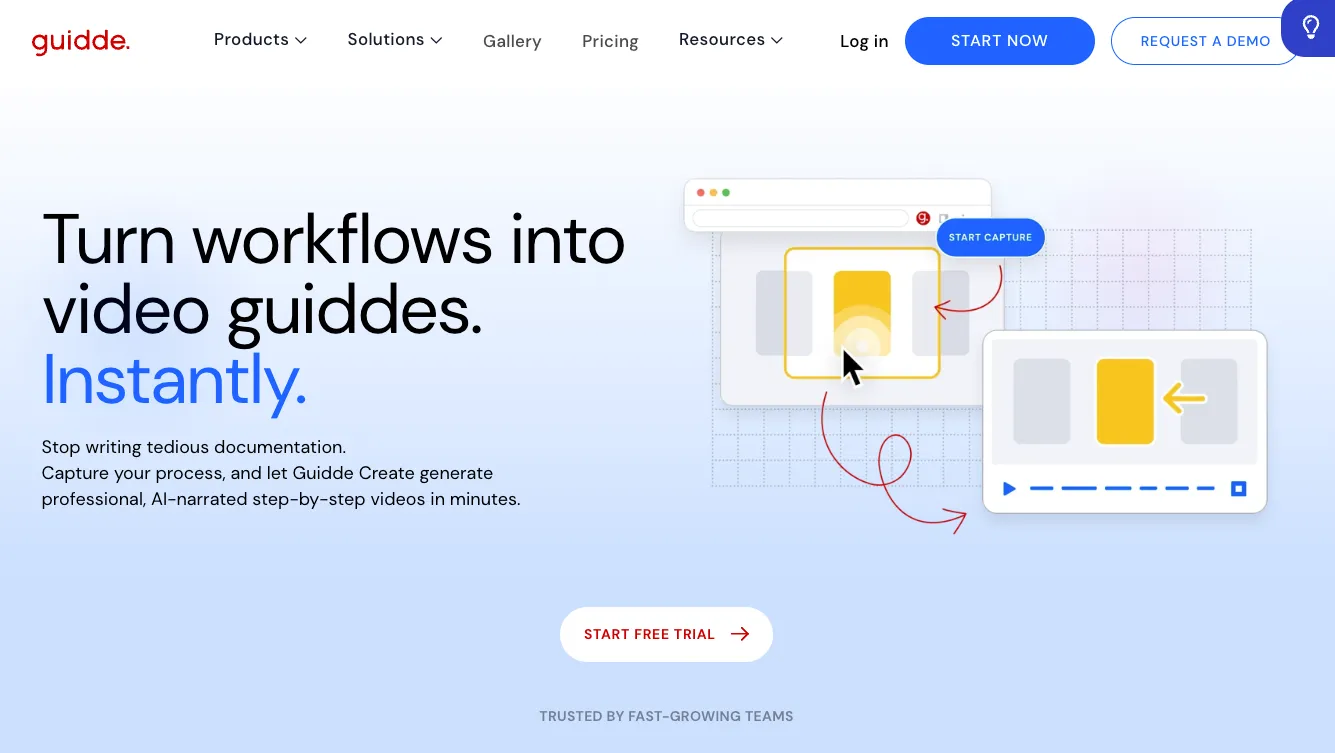
Guidde uses AI to assemble how-to videos and written guides from your screen captures, with automatic voiceovers in multiple languages. You capture a workflow in the browser with Magic Capture, and Guidde builds the storyboard, the voiceover and the step descriptions. It's popular for customer-facing tutorials as well as internal SOPs.
Key features of Guidde
- Magic Capture browser extension for Chrome and Edge
- AI Powered Storyboarding and AI-Generated Voiceover in 50+ languages
- Convert video to knowledge base article
- MP4 upload, desktop and mobile capture on Business and Enterprise
- Guidde Ask and Broadcast for sharing
Guidde pricing
- Free: $0, up to 25 how-to videos, web apps only
- Pro: $19/creator/month billed yearly ($29 monthly)
- Business: $39/creator/month billed yearly ($59 monthly), up to 5 creators
- Enterprise: contact sales
- Viewers don't need a paid seat, and there's a free 7-day Business trial
Guidde pros
- Fast, good-looking narrated videos without recording your own voice
- Free viewers, so a big audience doesn't raise the bill
Guidde cons
- Uploading existing MP4s and desktop capture need the Business plan
- SSO, translation and SCORM export are Enterprise only
Weighing it up? See how Whale compares with Guidde.
All-in-one video platforms
These tools are best when video is the main deliverable. The written SOP is possible, but it isn't where they start.
8. Loom
Best for quick narrated video walkthroughs
G2 rating: 4.7/5
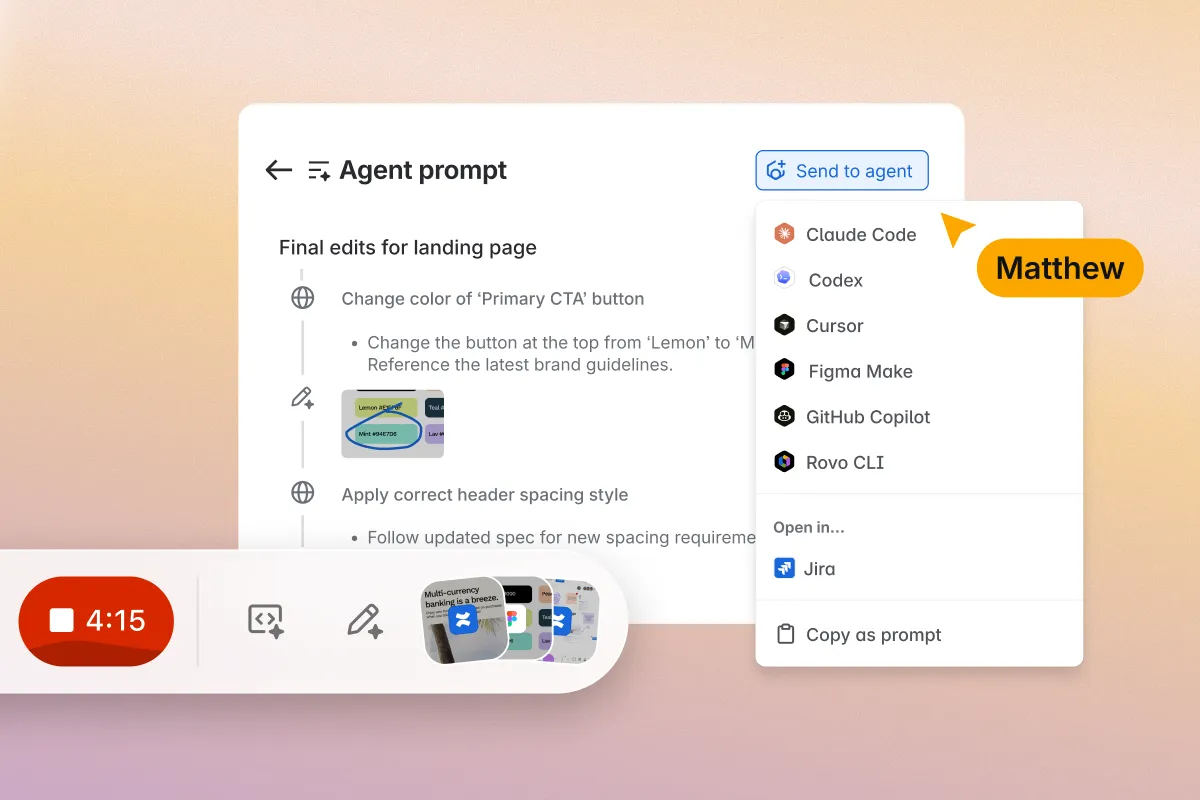
Loom is the quickest way to record a narrated walkthrough and share a link. Its AI workflows can follow the steps in your video to draft an SOP, but that sits on the Business + AI plan, writes in English only, and auto screenshots per step are still marked "Coming Soon". So a human still has to polish the text.
Key features of Loom
- Desktop and Chrome recording, plus iOS and Android
- AI Workflows that turn a video into a document, an SOP or an issue
- Auto titles, summaries and chapters
- Filler word and silence removal, edit by transcript
- Video upload on Business and up
Loom pricing
- Starter: free, 25 videos per person, 5-minute recordings
- Business: $15/user/month billed yearly ($18 monthly)
- Business + AI: $20/user/month billed yearly ($24 monthly), 14-day free trial
- Enterprise: contact sales
Loom pros
- The fastest way to record and share a walkthrough
- Strong AI summaries and chapters for long videos
Loom cons
- SOP drafts need Business + AI and come out in English only
- The free plan caps recordings at 5 minutes and doesn't allow uploads
9. Camtasia
Best for heavily edited training videos with quizzes
G2 rating: 4.6/5
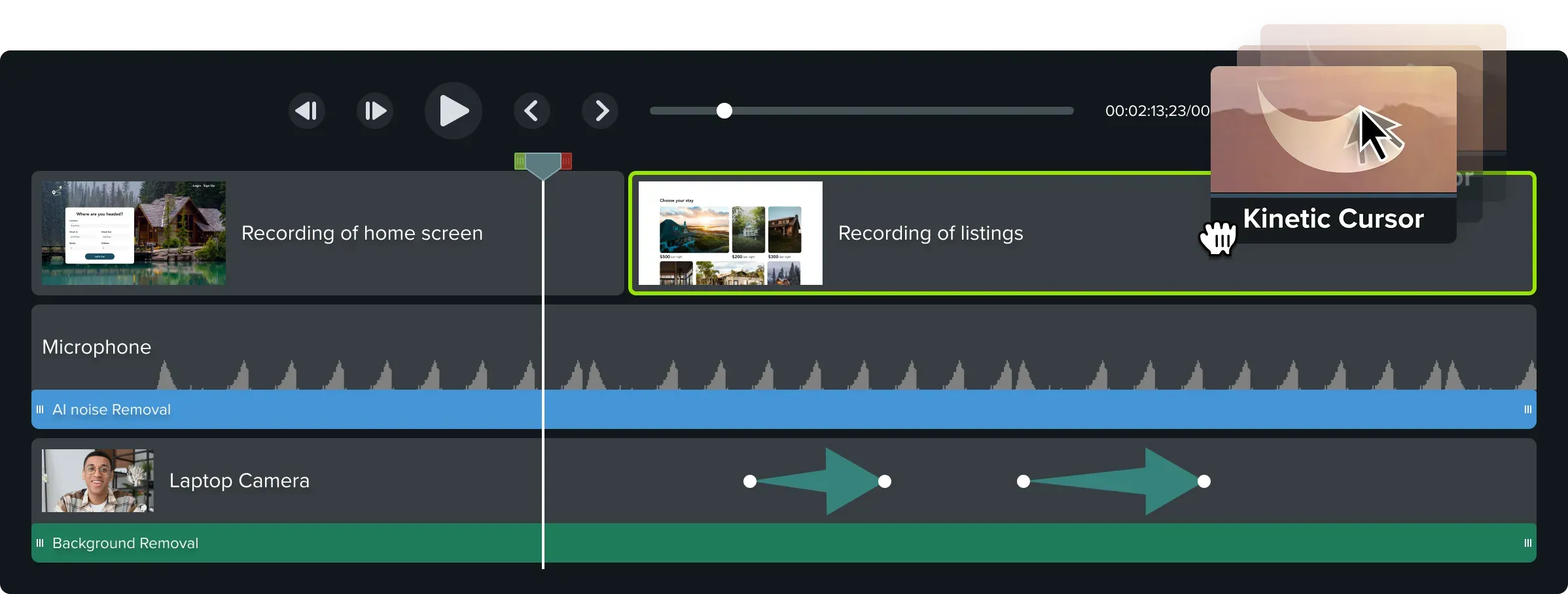
Camtasia by TechSmith is a heavier-duty screen recorder and video editor. You can build detailed software tutorials with quizzes and export SCORM packages for your learning platform. The Camtasia editor itself makes video only. Written step guides come from Camtasia Snagit, which is bundled into every plan and turns your clicks into guides and SOPs.
Key features of Camtasia
- Multi-track screen, camera and audio recording up to 4K
- Cursor editing, zoom and pan, animations and transitions
- Quizzes and SCORM export (Essentials and up)
- Text-based video editing and filler word removal with Camtasia Audiate
- AI-powered step capture in the bundled Camtasia Snagit
Camtasia pricing
- Starter: $39/year, screen capture, 4K recording, Snagit and the Camtasia editor with watermarked exports
- Essentials: $179.88/year, adds full multitrack editing, text-based editing, captions and Camtasia Audiate, with watermark-free exports
- Create: $249/year, adds AI script generation, voiceover generation and multi-language support
- Pro: $599/year, adds AI avatars, audio dubbing, translation, stock assets and brand assets
- Teams and business: $198/user/year for 1 to 9 users, $188.10/user/year for 10 to 99 users
- Each app can be trialed for free with limits, plus a 14-day money-back guarantee
Camtasia pros
- The most control over how a training video looks
- Quizzes and SCORM export for a learning platform
Camtasia cons
- The editor is video only, and written guides depend on the bundled Snagit
- On the Starter plan the Camtasia editor is watermarked, and plans are yearly only
How we compared these tools
We started with the tools named in the top 10 Google results for "best screen recording tools for SOPs" and in the answers AI assistants and Google's AI Overviews give to "tools to turn screen recording into SOPs". We also spoke to our sales team about what prospects are using before they come to us. We dropped generic screen recorders built for gaming and streaming, and meeting notetakers that summarize calls rather than document a process.
We compared each tool on five things: what goes in (a live recording, an uploaded video or both), what comes out (a video, a written guide or both), where the SOP lives afterwards, published pricing, and G2 rating.
But what we always say to customers and prospective customers is try the tools out for yourself. Record the same five-minute process in two or three of them and compare what you get.
Screen recording SOPs in an AI-first world
AI has made the first draft the easy part. Coral, Whale's AI assistant, documents an SOP in seconds from a recording, and most tools on this list can produce some kind of draft. The hard part now is everything after the draft: checking the steps, adding the reasons and exceptions, and keeping the SOP current when the software changes next quarter.
That's why where the SOP lives matters more than which recorder made it. If your SOPs sit in a knowledge base your AI tools can read, through Whale MCP, then the AI agents and assistants your team uses answer from your real processes, not from guesses. And when Coral answers a question in Slack with the source attached, the SOP gets used instead of forgotten. Record once, review once, and let AI handle the repeat questions.
How to choose a screen recording tool for SOPs
- You want one recording to become a video, a written SOP and training: Whale.
- You want the most polished AI-edited video: Trupeer or Clueso.
- You make narrated how-to videos for customers: Guidde.
- You need a low-cost recorder that also writes the guide: Kommodo.
- You document quick browser tasks and want a free start: Scribe or Tango.
- You produce heavily edited training videos for a learning platform: Camtasia.
Ready to stop writing SOPs from memory?
Start on Whale's free plan and record one process you explain every week. See what Coral makes of it.