
Menu

Whale releases

What's new in Whale

New features and improvements, newest first.

Create content with Alice

AI

Cards, quizzes and checklists from one AI assistant.

You can now create cards, quizzes and checklists with Alice, which replaces the older separate AI generators. Alice updates an existing checklist instead of creating a duplicate, and document imports with several cards create one card per item. A new form helps you generate draft card content that stays editable, and quiz generation lets you pick several libraries, playbooks, cards or checklists as sources.

Learn more

  1. A refreshed Alice chat

    AI

    Cleaner design, visible sources and faster replies.

    The Alice chat panel has a new design that is easier to read, and answers now include a sources block so you can see where they come from. Replies stream faster, you can use new lines in longer prompts, and messages are grouped under clear timestamps. A new memory view lets you see, edit and remove what Alice remembers.

  2. Smaller improvements in September

    General

    Menus, exports and settings got clearer.

    Three-dot menus are now grouped into sections, with Delete shown in red. Word exports keep images, lists, tables and page layout. Workspace Activity records PDF exports, and the auto-translate setting states clearly that content is translated automatically.

  3. Easier training management

    Training

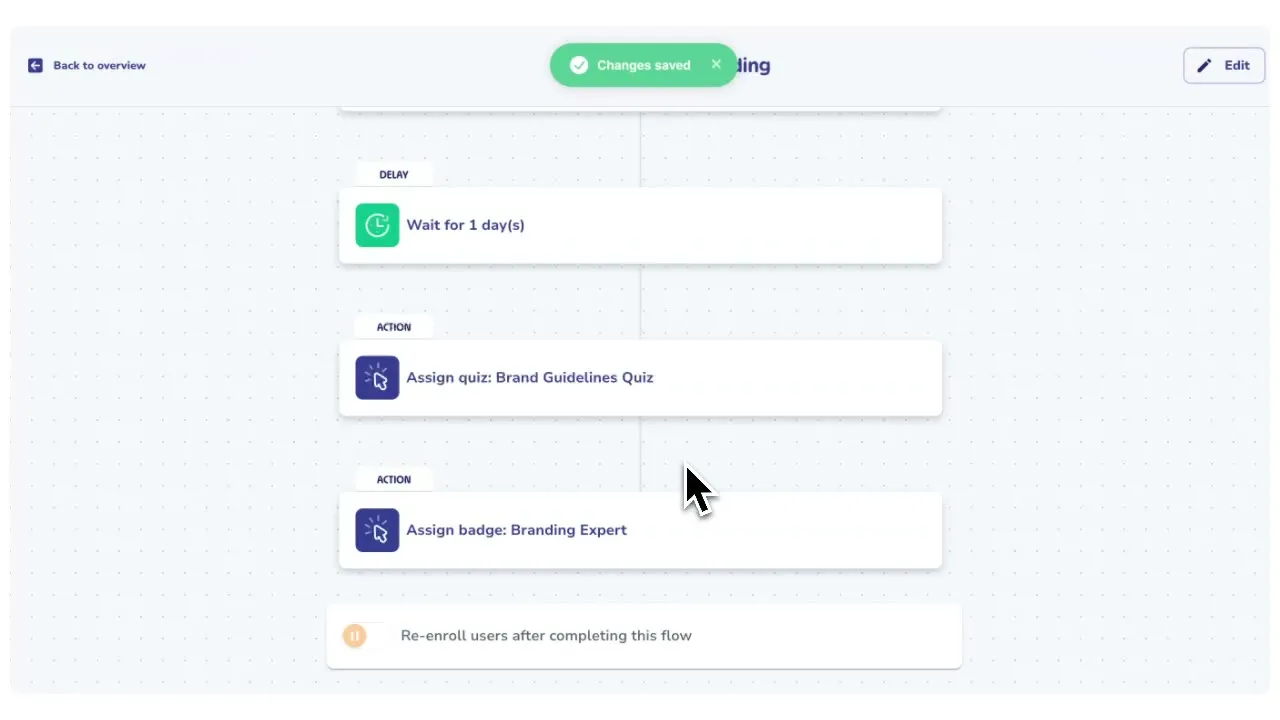
    A Whale training flow with wait, quiz and badge steps

    Search, stats, duplicates and flow notifications.

    Quizzes, training flows, suggestions and badges now have a search and stat blocks at the top of each page. You can duplicate a quiz or a training flow from its three-dot menu, with an independent copy of its questions, steps and settings. Training flows can send email notifications when a flow starts, progresses or completes, and you can assign libraries directly in a flow.

  4. A faster Boards overview

    General

    Bookmarks, search and list or grid views.

    You can bookmark boards and reach them from the Boards overview and your dashboard. The overview has list and grid views, a collapsible Bookmarks section, and a search that filters boards by name as you type. Ctrl or Cmd click opens a board in a new tab.

  5. User management for large teams

    Admin

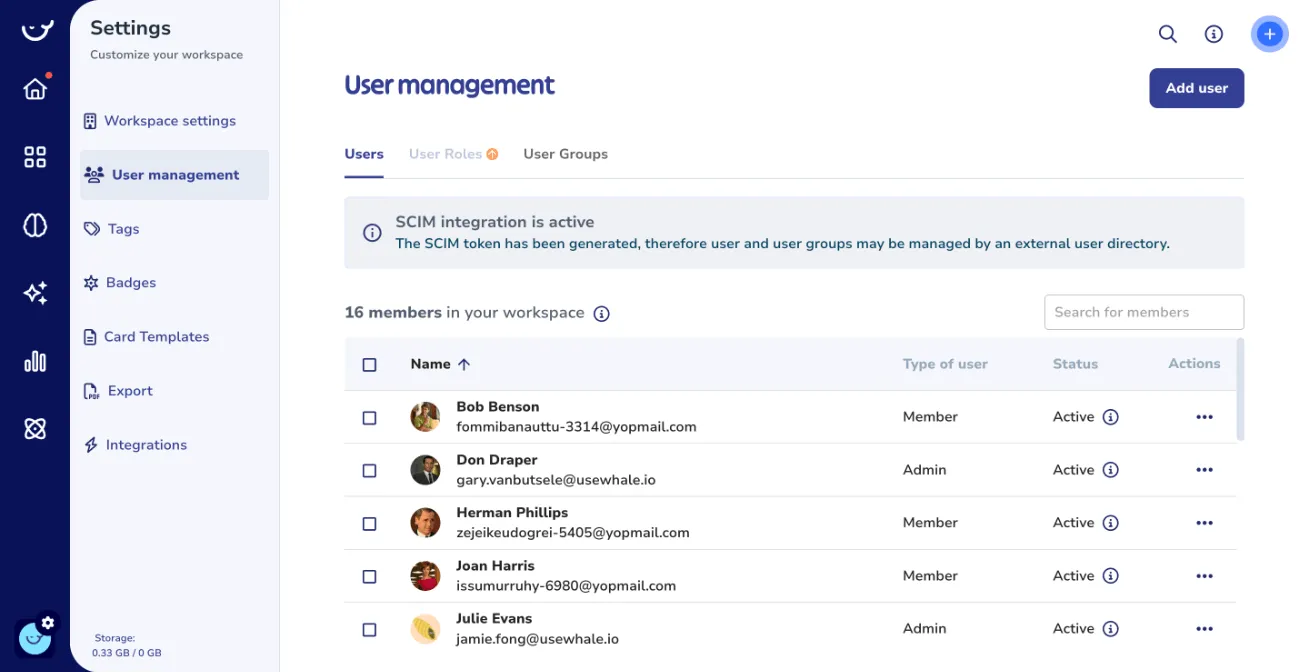
    The User management table in Whale settings

    Bulk imports, kiosk accounts and easier offboarding.

    Admins can import users from a CSV file, and the invite window accepts several addresses or a CSV upload and shows seat counts before you confirm. A new kiosk role limits kiosk accounts to the kiosk interface, and the users table has employee ID and location columns. When someone leaves, Whale shows the playbooks and training flows they are responsible for so you can hand them to a replacement in one step.

  6. Badges and quiz results

    Training

    Custom badges, and clearer results for learners.

    Admins can design custom badges with an emoji or a shape illustration, their own colors and a live preview, or give badges AI-generated images. Learners see a celebration on their dashboard when they earn a badge. The quiz result screen now shows a clear score with a Passed or Not passed label, and creators can add images to answer options and insert questions anywhere in a quiz.

  7. Approval flow for checklists

    Editor

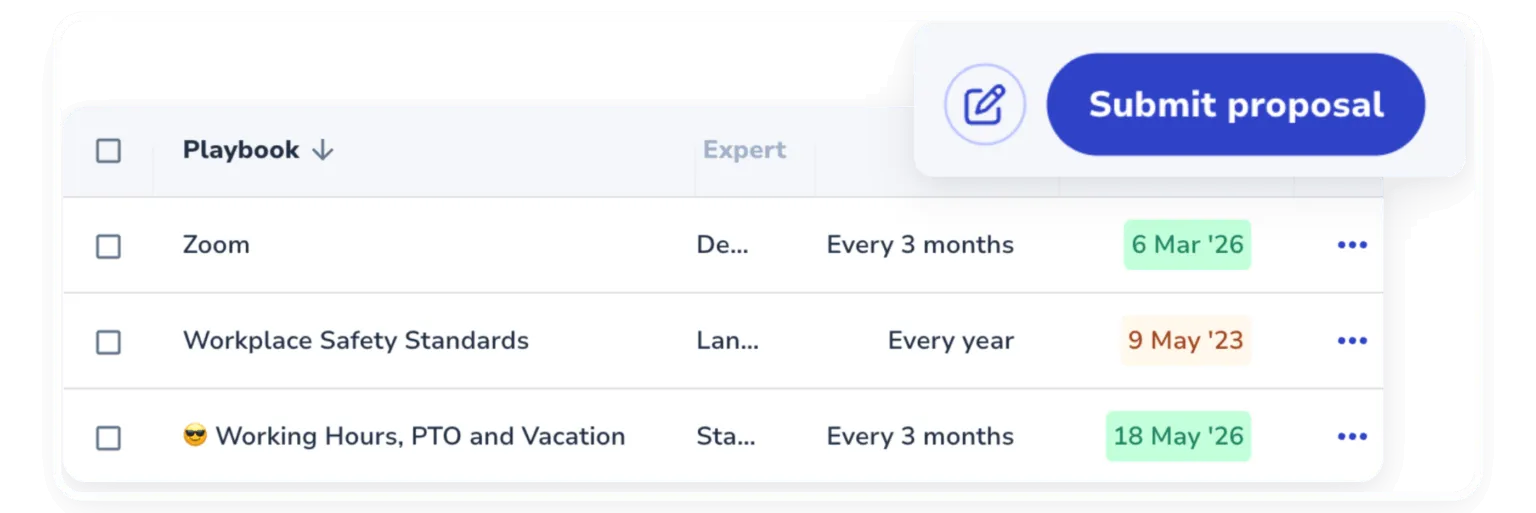
    Submit proposal on a list of Whale playbooks with review intervals

    Submit, review and publish checklist changes.

    Teams can submit checklists for review, approve them, and publish when ready. Writers approve content while contributors propose changes, and saving a draft no longer changes the live checklist until someone publishes it. Comment links now open the exact checklist or draft version the comment belongs to.

  8. Knowledge Health recommendations

    Analytics

    Find weak content and fix it with Alice.

    Knowledge Health shows one prioritized feed of recommendations, with filters for status, type, issue, priority and board. Health scores break down into quality, coverage and knowledge integration, and each finding has a Fix action that opens Alice with the content and asks her to fix it. Content nobody has viewed recently can be assigned straight from its recommendation, and card health recommendations now show for all users in the card view.

  9. Smaller improvements in August

    General

    Editing tools and analytics tables got better.

    The image editor has a freehand pen and an emoji picker, and its toolbar no longer blocks the canvas. Numbered lists support nested numbering such as 1.1 and 1.2 again. Analytics tables show complete results with working pagination, and the Experts view works when a playbook has no expert.

  10. Alice now shows its work

    AI

    See how well your docs back each answer.

    Ask Alice, Whale's AI assistant, a question and each answer flags whether it is directly backed by your documentation, only partial, or not covered. You see when to act and when to check first, and a "not covered" result points you straight to the gap worth documenting.

  11. Smaller improvements in July

    General

    Simpler filters and faster content setup.

    Analytics filters moved into a sidebar you can hide, with preset date ranges and a Clear button. You can create a new board, library, playbook or card while choosing where to save content. The editor can insert an empty paragraph before or after a block, and document imports show clear format and size limits.

  12. Edit cards from Alice

    AI

    Updating an SOP now takes a sentence.

    Spotting an outdated SOP takes a second, and now updating it does too. Edit any card straight from a chat with Alice: tell Alice what changed and the card updates on the spot.

Book a demo

See Whale in action. Leave your details and we'll be in touch to schedule it.

Number of employees at the company