
In this article
To use the Whale MCP, you add Whale as a connector in the AI tool your team already uses (Claude, ChatGPT, Gemini or any other MCP client) and sign in over OAuth. From then on that AI can search, read, create and edit your company's SOPs with your own Whale permissions. It comes with the Scale, Advance and Enterprise plans.
Used well, the Whale MCP turns your documentation into a growth flywheel: your AI works from your processes, the questions it can't answer show you what to document, and every new SOP makes the next answer better.
Most teams connect an AI tool to their company knowledge, ask it three questions, get one wrong answer from a doc last touched in 2023, and quietly go back to asking Dave. The problem isn't the AI. It's that nothing feeds the knowledge back. This guide is about building the loop, not just the connection.
Key takeaways
- Setting up Whale MCP is an access request, a connector and an OAuth login. It comes with the Scale, Advance and Enterprise plans. Request access in your Whale settings, then add Whale as a connector in your AI tool. It doesn't need config files or API keys.
- Whale MCP is safe to use. The AI only sees and changes what the signed-in person can already see and change in Whale, and Whale is SOC 2 certified. Changes are saved straight away, so your AI tool's "allow this action?" prompt is your check before anything runs.
- Your AI can answer questions and write SOPs. It searches your Whale workspace and answers with a link to the source. It can also create, edit and delete cards, guides, playbooks and quizzes, and those changes are saved straight away.
- The Whale MCP enables your company to create a growth flywheel. Your AI works from your SOPs, the gaps it finds show you what to document next, and every update makes the next answer better.
- Your SOPs now have more than human readers. Your team reads your SOPs, Coral answers questions from them, and AI agents follow them as instructions.
What is the Whale MCP?
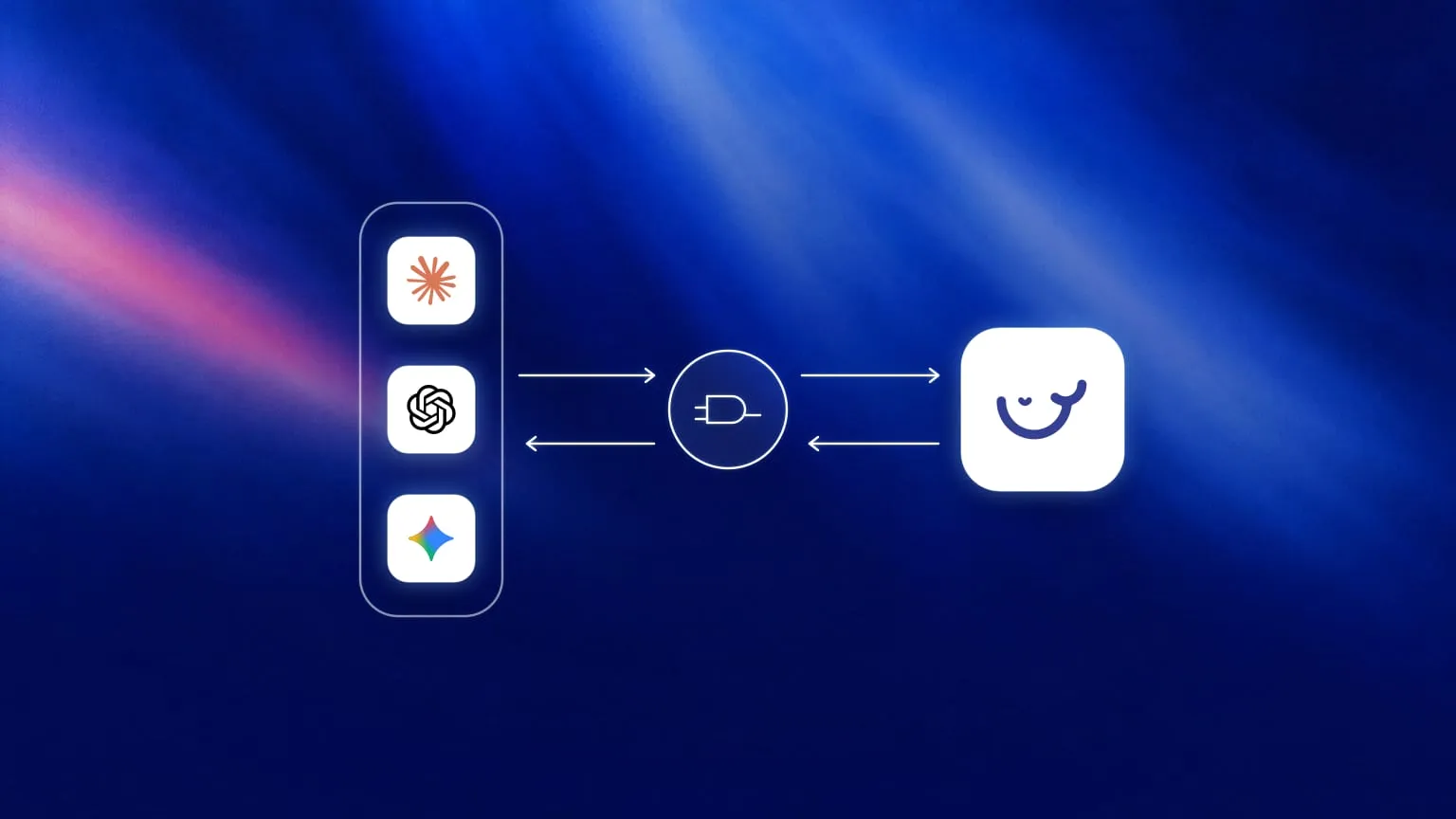
Whale MCP is Whale's remote MCP server. It connects the AI tool your team works in, like Claude, to your Whale workspace through the Model Context Protocol, the open standard that lets AI tools securely read and act on data in the software you already use. Once it's connected, the AI acts as you inside Whale, with your existing permissions.
What your AI can do through Whale MCP:
- Ask and find. Search the whole workspace and get answers cited to the source card. Browse boards, libraries, playbooks, cards and step-by-step guides. Open any card, guide, playbook or quiz.
- Build and edit. Turn scattered notes into structured SOP drafts. Create, update and delete boards, libraries, playbooks, cards, guides, quizzes and tags.
- Stay inside the lines. Every action follows the person's existing Whale permissions. Changes are saved straight away, and depending on its settings, your AI tool asks you to allow each action before it runs.
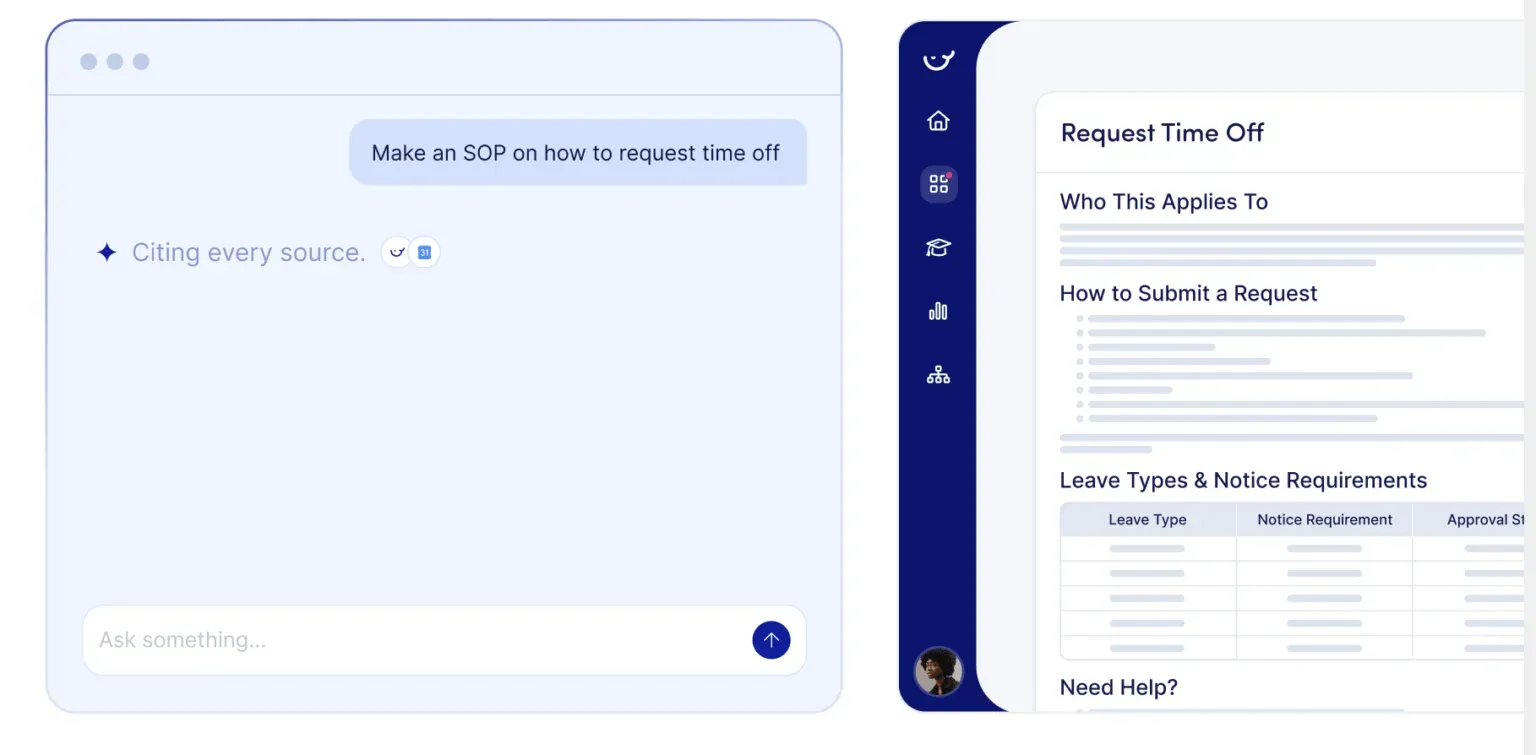
What is a growth flywheel, and why does your AI need one?
A growth flywheel is a loop where each turn makes the next one easier and turns scaling into a systemic process. For company knowledge, the loop has five stages:
- Capture what your team knows as SOPs, guides and cards.
- Use it: people and AI tools answer questions and do work from it.
- Act: AI agents follow your documented instructions to get real work done.
- Learn: unanswered questions, stale cards and unread content show you the gaps.
- Update: you fill the gaps, and the next answer is better.
Without stage 4 and 5, you don't have a flywheel. You have a very expensive search bar pointed at a slowly rotting wiki. AI makes the loop spin faster because it can draft the update in seconds, but it can only do that if it's plugged into the place where your processes live. That's the job Whale MCP does.
Is your team ready for the flywheel?
Before you connect anything, check where your processes stand. There are five stages of AI-ready business processes:
- You have no processes.
- You have processes, but they aren't documented.
- They're documented, but not shared.
- They're shared, but not followed.
- They're followed and used for continuous improvement, and to scale your team's output with AI and agentic workflows.
AI only pays off reliably at stage 5. Most teams try to jump to it from stage 2, and that's how you end up with an AI answering from a doc last touched in 2023. The steps below take you up the stages: step 2 gets your processes documented, step 3 gets them shared and used, and steps 4 to 6 make sure they're followed and keep improving.
Step 1: Request access to Whale MCP and connect your AI tool
Whale MCP comes with the Scale, Advance and Enterprise plans. First, request access to Whale MCP in your Whale settings. Then your admin adds Whale as a custom connector in your AI tool and you sign in over OAuth. On a company plan of your AI tool, such as Claude Team or Enterprise, an admin adds Whale as a connector for the whole company first. There's no key to copy and nothing to install on a server.
- Pick your client. Whale MCP is a remote MCP server, so it works with Claude, OpenAI, Gemini and any other tool that speaks the Model Context Protocol. Still choosing? Our comparison of AI automation tools for business covers the main assistants.
- Use the right region. Workspaces hosted in the EU connect to https://api-eu.usewhale.io/mcp/v1 and US workspaces to https://api-us.usewhale.io/mcp/v1.
- Check who sees what. The AI inherits the signed-in person's permissions. If someone can't open the HR board in Whale, their AI can't either.
- Set your approvals. Whatever the AI creates, edits or deletes in Whale is saved straight away. If you want to approve each change, set your AI tool to ask before it runs an action.
Try a first prompt to check it works: "Which Whale workspace am I in? Find our onboarding checklist and link me the card."
Step 2: Feed it what your team already knows
Your most valuable knowledge probably isn't in a document. It's in Slack threads, half-finished Google Docs and the head of the person who's been here longest. That's institutional knowledge, and it walks out the door when they do. Point your AI at that material and ask it to build SOPs in Whale.
Prompts that work well:
- "Turn this onboarding doc into a playbook with one card per step, and cite the source for each step."
- "Read these support threads and draft FAQ cards for the questions that come up more than once."
In an internal demo in June 2026, Whale MCP turned four months of threads from our own #sales_questions channel into a structured "Product capabilities FAQ" library of five playbooks, with each card. It shows just how every interaction can become an opportunity for better process.
Step 3: Let your AI answer from approved SOPs
Once your knowledge is in Whale, people can ask a question they already have open. "What's the refund step for annual plans?" or "What's on the onboarding checklist for a new SDR?" The answer comes back from your live, approved SOP, with a link to the source card, not from whatever the model half-remembers from the internet.
Coral, Whale's AI assistant, answers from the same knowledge. Your team can also message Coral in Slack (the app is called Whale there), so the answer reaches people where they already are.
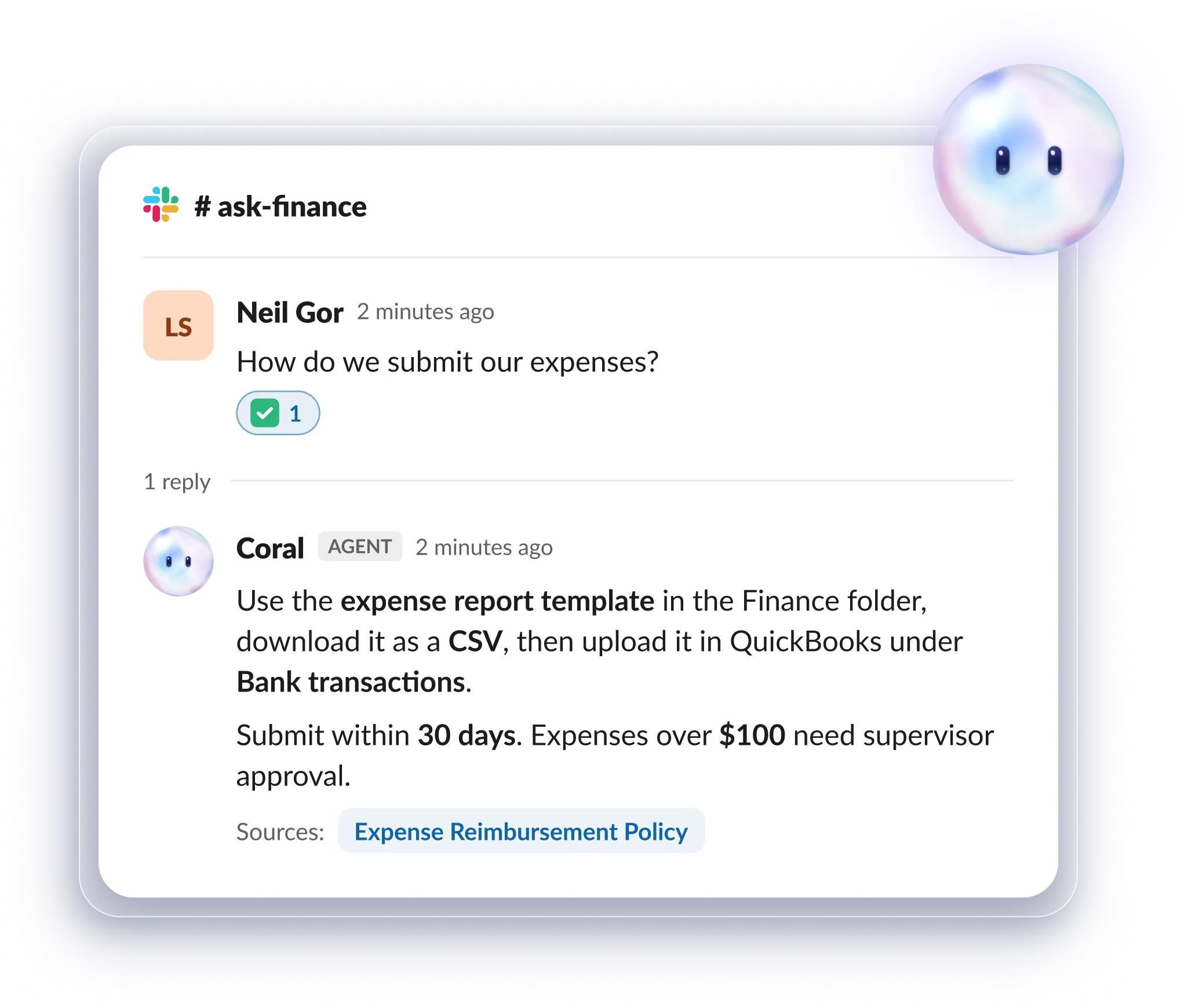
This is where the flywheel starts paying for itself. Every answer that comes from a doc instead of a colleague is one less tap on a colleague's shoulder.
Step 4: Write instructions your AI agents can follow
The next turn of the wheel is AI that acts, not just answers. If an agent can read your SOPs through Whale MCP, your SOPs become its instructions. So write some of them for that reader. Still choosing where to build those agents? We compared the best agentic workflow tools.
Take refunds for example. Your support team already has a refund SOP in Whale: who qualifies, the limits, which system to use and when to escalate. Next to it, add a short card written straight to the AI agent that handles refund requests. It says:
- find the refund policy card and follow it step by step
- check the request against the rules, and stop if something doesn't match
- stay under the refund limit, and send anything above it to a person for approval
- log what you did and link the card you followed
- flag any step in the card that didn't match what you saw
That last line is the flywheel in one sentence. The agent uses the docs, does the work, and tells you where the docs need updating.
Step 5: Let the gaps tell you what to write next
A flywheel needs friction to show you where it's wobbling. In Whale, that's the job of the Knowledge Health agents, part of Whale AI.
Our guide on how to use AI agents to scale your team's output goes deeper on each one but in summary, here's what our AI agents do.
- Health score is always on and free. It scores your content on quality, coverage and knowledge integration.
- Answers, Search gaps and Unread content run daily, weekly or monthly, you choose. They flag questions Coral couldn't answer well, searches that found nothing, and content nobody reads.
- The Slack knowledge agent follows the public channels you pick and spots the questions people keep asking, even without a question mark. Questions your workspace doesn't answer yet show up as recommendations in Insights. It's available on Scale and above.
Each recommendation has a Fix action that opens Coral with the content, ready to fix it. Or take the gap to your AI tool through Whale MCP: "Draft a card that answers how we handle refunds for annual plans, using our refund policy card as the source."
Step 6: Turn what you learn into training
The last stage is making sure people, not just AI, know the new process. Training flows live in Whale itself (Whale MCP doesn't manage training flows). Add the updated playbook to the right training flow, let Coral or your AI tool create a quiz from it, and assign it to the team that needs it.
Through Whale MCP your AI can list quizzes and open them, and create and edit them too. The quiz list shows details such as the number of participants and the link, so you can ask "Which of our quizzes have the most participants?" without opening Whale. Open a single quiz and you get its questions and answers as well.
Then the wheel turns again. New people ask new questions, the agents catch the ones your docs miss, and you fill them.
What a growth flywheel looks like in Whale
Use this as a template but feel free to swap in your own systems.
| Stage | What happens | Whale feature |
|---|---|---|
| Capture | Slack threads and messy docs become structured SOP drafts | Whale MCP (write), step recorder, video to SOP |
| Use | People ask Claude or Coral and get answers from approved SOPs, with sources | Whale MCP (read), Coral, Coral in Slack |
| Act | AI agents follow documented instructions and flag where the docs don't match | Whale MCP (read), cards written for agents |
| Learn | Unanswered questions, search gaps and unread content get flagged | Knowledge Health agents, Slack knowledge agent, Insights |
| Update | Gaps become drafts, drafts get approved, people get trained | Coral Fix action, Whale MCP (write), version history, training flows, quizzes |
The connection is the start, not the project
Connecting your AI to Whale takes minutes. The flywheel is what you build after that.
Document your key processes first, because an AI pointed at an empty workspace will fill the gaps with guesses.
- Let your AI write, but set your AI tool to ask before it creates, edits or deletes anything, because changes are saved straight away.
- Write the cards your agents act on as clear rules: what's allowed, what's not, and when to stop.
- Keep permissions tight, because the AI only sees what the signed-in person can see.
- Then check the gaps every week and fill them. That's what keeps the wheel turning.
Ready to get your knowledge working for you?
Connect your AI tool to Whale and start the first turn of the wheel. See how Whale MCP and integrations work, or read how teams train AI agents on their company processes.
Keep reading
Bram Billiet, is the Co-founder and Chief Product Officer at Whale. His obsession for building the product is matched matched only by his love for conquering levels in Mario Brothers.