


In this article
How-to reference guide templates for quick reference?
To create effective quick reference guide templates, focus on clarity and simplicity. Use bullet points for concise necessary information, incorporate visuals for better understanding, and ensure consistent formatting. This approach helps users easily find essential details at a glance, making the guide practical and user-friendly for quick access.
Streamline your workflow with these top 6 quick reference guide templates. From Canva to Notion, find the perfect template for your needs in 2025.
Unlocking Efficiency: Your Guide to Quick Reference Guides
Need to boost team productivity and ensure consistent execution? Quick reference guides are your solution for providing good customer service. This curated list dives into six top quick reference guide templates. We’ll explore key features, practical use cases, and direct download links. Forget generic descriptions and surface-level reviews. We’ll cover the real-world pros and cons, based on extensive use, to help you choose the best template for your specific task or needs. Whether you’re streamlining onboarding, documenting complex procedures, or simply aiming for operational excellence, this guide provides the actionable insights you need. This information is crucial for operations managers, HR professionals, growing businesses, and compliance-driven industries alike. Quickly get your team up to speed and performing at their best with the right quick reference guide template.
Looking for a quick reference guide template in Canva, Microsoft Word, or perhaps a more robust solution like Whale? We’ve got you covered. This list includes diverse options to cater to various levels of design expertise and project complexity, including simple tasks for beginners. Skip the tedious template search and get straight to building impactful resources. Inside you’ll find specific examples of how these templates are best utilized across different departments, from IT and logistics to finance and manufacturing. We’ll also highlight potential limitations so you can avoid common pitfalls and maximize template effectiveness. Stop wasting time on inefficient processes and start empowering your teams today.
1. Whale Quick Reference Guide Templates
Canva has become a powerhouse for accessible design, and its quick reference guide templates are no exception. These templates provide a streamlined approach to creating visually appealing and easy-to-understand guides for various purposes, from employee onboarding to software documentation. The platform’s drag-and-drop interface combined with a vast library of pre-designed templates, icons, and images empowers even non-designers to create professional-looking resources. This ease of use makes Canva a particularly attractive option for small businesses, marketing teams, and educational institutions seeking to quickly develop and deploy training materials or internal documentation.
Key Features and Benefits
Canva’s quick reference guide templates offer several advantages:
- User-Friendly Interface: The drag-and-drop functionality simplifies design, allowing users to easily customize templates with their own content and different elements for branding.
- Template Variety: Canva provides a diverse range of pre-designed templates catering to various industries and use cases, including software guides, checklists, medical procedures, and customer service scripts.
- Collaboration Features: Canva allows teams to collaborate on designs in real-time, streamlining the review and approval process with different color palettes.
- Accessibility: Templates can be adapted to meet accessibility guidelines, ensuring inclusivity for all users.
- Cost-Effective: Canva offers a free version with a robust selection of templates and design elements, making it a budget-friendly solution for small businesses and individuals.
Practical Implementation and Use Cases
I’ve personally used Canva to create quick reference guides for everything from social media image sizing to internal style guides. Its versatility is a significant strength. For instance, during a software implementation project, I created a quick reference guide for key keyboard shortcuts, dramatically reducing the learning curve for new users. In another case, I developed a checklist for a complex manufacturing process, significantly improving adherence to standard operating procedures and minimizing errors. Furthermore, a fully comprehensive manual is useful for more in-depth guidance.
Decision Tree for Template Selection
The following infographic provides a decision tree to help you choose the right Canva quick reference guide template based on your specific needs. It considers your design skill level, collaboration requirements, and the need for mobile responsiveness, particularly if you are considering a particular template.
This decision tree guides users through key questions related to customer content, starting with design proficiency, progressing to collaboration needs, and concluding with mobile responsiveness requirements. By following this flowchart, users can quickly pinpoint the most appropriate template type for their project, maximizing efficiency and ensuring the final guide meets their specific needs.
Tips for Effective Quick Reference Guides with Whale
- Maintain Consistency: Use consistent color schemes and fonts throughout your guide to enhance readability and professionalism.
- Prioritize Conciseness: Keep text concise and use bullet points to improve clarity and comprehension.
- Brand Integration: Incorporate your company logo and branding elements to reinforce your brand identity.
- User Testing: Test the guide with your target audience before finalizing it to identify any areas for improvement.
- Accessibility Considerations: Use high-contrast colors for better visibility, particularly for users with visual impairments.
Limitations
While Canva offers a wealth of features, it’s essential to be aware of its limitations. The free version has limited access to premium templates and design elements. To create a guide, consider including only the most vital information on complex design requirements, as these might necessitate using a more advanced design tool. Offline access can be limited depending on your subscription.
Despite these limitations, Canva remains a powerful and accessible tool for creating effective quick reference guides, making it a valuable resource for individuals and organizations seeking to streamline communication and improve knowledge transfer. The platform’s intuitive interface and extensive template library empower users to create professional-looking good quick reference guides quickly and easily, making it an ideal solution for those with limited design experience.
Common Types of Quick Reference Guides
Quick reference guides are essential tools that provide condensed information for users, facilitating quick access to important information and vital details without overwhelming them with excessive content. These guides can take various forms, such as cheat sheets, user manuals, or quick-start guides, each tailored to specific needs. For instance, a cheat sheet might summarize keyboard shortcuts for software applications or even describe how to bake the occasional loaf of bread, while a user manual offers in-depth instructions for operating a product. By understanding the type of quick reference guide that best suits the user’s needs, organizations can enhance productivity and streamline workflows, ensuring that essential information is always at hand.
Incorporating different formats into your quick reference guides can also improve user engagement. For example, visual elements like infographics or flowcharts can simplify complex processes, making the information more digestible. Additionally, these guides can be tailored to suit a variety of industries, from healthcare to technology, ensuring that users have an easy way to access the specific information they need to succeed in their tasks. To create effective quick reference guides, it is essential to follow a simple and easy-to-follow layout, which is a key strategy for enhancing user experience and operational efficiency.
3. Process Documentation Templates
Some tools specialize in visual documentation and offers sophisticated quick reference guide templates that excel at presenting process flows, organizational structures, and step-by-step procedures, including a list of keyboard shortcuts. These templates are particularly effective for technical and operational documentation, making them an invaluable resource for teams seeking to clarify complex processes. Other tools go beyond basic flowcharts, allowing for interactive elements and detailed annotations within the quick reference guides. This depth makes them perfect for situations requiring more than just a simple overview.

The of diagram tools strength lies in its ability to visually represent complex information in an easily digestible format. Key benefits include:
- Intuitive Diagramming Tools: The drag-and-drop interface coupled with a rich library of shapes and connectors simplifies the creation of even intricate diagrams and allows users to focus on important topics clearly and efficiently.
- Collaboration Features: Real-time collaboration allows teams to work together on quick reference guides, streamlining the development process and enhancing external communication.
- Integration with Other Platforms: Diagram tools should integrate seamlessly with popular platforms like Google Workspace and Microsoft Office, simplifying document sharing and workflow integration.
- Version History: Tracking changes and reverting to previous versions ensures that important updates aren’t lost and provides a clear audit trail, along with sleek digital display options for better visibility.
- Interactive Elements: Add hotspots, layers, and interactive links to create dynamic quick reference guides that enhance user engagement using a sleek digital display to showcase features accurately.
Another example involved developing an onboarding checklist for new hires, clarifying key steps and responsibilities.
4. Template.net Quick Reference Collection
Template.net offers a vast library of over 500 quick reference guide templates, spanning diverse formats and industries. These templates are known for their professional design and adaptability for both digital and print use. From restaurant menus to financial checklists, Template.net caters to a wide range of needs, including lengthy documentation with industry-specific customization options. This makes it a valuable resource for businesses and individuals seeking readily available, professional-looking quick reference guides.
Template.net’s quick reference guide templates provide several advantages:
- Diversity: The extensive template library covers numerous industries and functions, ensuring there’s a suitable option for virtually any need, including quick ideas for warming up pizza rolls.
- Professional Design: Templates are crafted with a focus on visual appeal and clarity, making them ideal for professional settings.
- Format Flexibility: Users can choose from various formats, including Word, Excel, PDF, and Google Docs, ensuring compatibility with their existing software.
- Customization Options: Templates are easily customizable, allowing users to incorporate their branding and specific information.
- Industry-Specific Templates: The collection includes templates tailored to specific industries, such as healthcare, finance, and education, streamlining the creation of specialized guides.
In my experience, Template.net has proven invaluable for quickly creating professional-looking guides for various purposes. I’ve utilized their templates for project timelines, onboarding checklists, and even social media posting guidelines. For example, when launching a new product, I used a Template.net marketing checklist to ensure all key tasks were completed efficiently. In another instance, I adapted a training manual template to create a quick reference guide for new software, significantly reducing onboarding time. Learn more about the importance of SOPs.
Tips for Effective Quick Reference Guides with Template.net
- Preview Thoroughly: Before downloading, preview templates to ensure they align with your specific requirements and branding.
- Format Compatibility: Choose templates in formats compatible with your software to avoid compatibility issues.
- Brand Integration: Customize templates with your company logo, colors, and fonts for consistent branding, including insights from online forums.
- Consider Print and Digital: Explore both print and digital versions to provide comprehensive access to your guides.
- Licensing: Review licensing terms for commercial use to ensure compliance.
While Template.net offers a wealth of templates, some limitations exist. The free options are often watermarked and require attribution. Some templates may require more extensive customization than others. Navigating the vast library can be time-consuming. Finding the perfect template might require some browsing.
Despite these limitations, Template.net remains a valuable resource for creating quick reference guides. Its wide selection of professionally designed templates, combined with flexible formatting and customization options, makes it a practical choice for businesses of all sizes. The ability to find industry-specific templates further enhances its value, allowing users to quickly create effective guides tailored to their specific needs.
Essential Elements to Creating a Great Quick Reference Guide
Creating a great quick reference guide involves several key elements that ensure clarity and usability. First and foremost, it’s essential to focus on the audience’s needs. Understanding what information they require helps tailor the guide effectively to include the product’s most basic features. Clear layout and design play a crucial role; using headings, bullet points, and visuals can significantly enhance readability. Additionally, incorporating a glossary of common terms and different color palettes can help distinguish sections and make the guide more visually appealing, thus capturing the user’s attention.
Another important aspect is the inclusion of essential information only, keeping the guide concise and focused. Users should be able to find what they need quickly without wading through unnecessary content. This handy process documentation ensures that regular updates are also vital to maintain accuracy and relevance as processes or products evolve. By ensuring these elements are in place, you can create a quick reference guide that accommodates users with no prior knowledge and is not only functional but also a valuable resource for users.
Visual Content
Visual content is the backbone of an effective quick reference guide. Good images, icons, and recent images of screenshots are invaluable in conveying complex information in a simplified manner. They serve as visual anchors that help users quickly identify key information and navigate through the guide, ensuring they have the right type of documentation for their needs. For instance, using a well-placed screenshot can guide users through a software process, eliminating ambiguity and enhancing comprehension.
To maximize the effectiveness of visual content, it’s crucial to maintain consistency in font sizes and styles throughout the guide. This consistency in font sizes aids readability and provides a professional appearance. Additionally, ensure that images are of high quality and properly labeled to avoid confusion. The combination of good visuals with concise text not only reduces the cognitive load on users but also makes the guide more engaging and user-friendly by highlighting important points of information. Ultimately, incorporating robust visual content is essential for creating a quick reference guide that truly resonates with its audience.
5. Adobe InDesign Professional Templates
Adobe InDesign represents the gold standard for creating polished, professional documents, and its quick reference guide templates are no exception. These templates offer unparalleled control over typography, layout, and image placement, making them ideal for high-end corporate materials, complex technical documentation, and publications demanding precise design control. Whether you need a skilled technical writer for a brief project or planning a comprehensive documentation process, InDesign can effectively accommodate your needs. While InDesign requires a greater investment in software and potentially design expertise compared to simpler tools, the results justify the effort for projects prioritizing a premium aesthetic and intricate formatting.
InDesign’s strengths lie in its sophisticated features:
- Typography Control: InDesign offers fine-grained control over fonts, kerning, tracking, and other typographic elements, ensuring professional-grade text formatting crucial for branding and readability.
- Precise Layout: Create complex multi-column layouts, integrate tables and charts, and precisely position design elements with pixel-perfect accuracy. This level of control is essential for documents requiring a structured and visually appealing presentation.
- Print Production Ready: InDesign is built for professional printing, supporting CMYK color, bleed marks, and other pre-press functionalities. This makes it the preferred choice for creating print-ready quick reference guides destined for professional distribution.
- Integration with Adobe Creative Suite: Seamlessly integrate with other Adobe applications like Photoshop and Illustrator, streamlining the workflow for incorporating high-quality images and graphics into your guides, much like an upgrade from an old stove to a modern kitchen appliance.
- Professional Templates: Access professionally designed templates from Adobe Stock and other sources, providing a strong foundation for creating visually appealing and effective quick reference guides.
I’ve leveraged InDesign to create high-impact quick reference guides for clients in diverse industries. For a luxury fashion brand, I developed a comprehensive style guide detailing brand colors, typography, and logo usage. The precise control InDesign offered over these elements was critical for maintaining brand consistency. In another instance, I created a complex medical reference card for a pharmaceutical company, utilizing InDesign’s advanced layout capabilities to present intricate information clearly and concisely.
Consider your design skills, print production needs, and the complexity of your content when choosing an InDesign template. If you require pixel-perfect layouts, intricate typography, and print-ready output, InDesign is the ideal platform. If your needs are simpler, a less demanding tool might suffice.
Tips for Effective Quick Reference Guides with InDesign
- Master Styles: Utilize paragraph and character styles for consistent formatting throughout your document. This saves time and ensures a unified visual identity by following best practices.
- Organize Layers: Effectively manage complex layouts by organizing elements into layers. This simplifies editing and revisions, helping you adhere to best practices.
- Preflight and Packaging: Utilize InDesign’s preflight feature to catch errors before printing. Package your files to ensure all fonts and linked assets are included for smooth handover to printers or collaborators.
- Image Resolution: Use high-resolution images for optimal print quality. InDesign provides tools for managing image resolution and ensuring sharp visuals, as well as providing information people need for effective design work.
InDesign’s power comes with a steeper learning curve compared to simpler tools. The software requires a paid subscription. While free trial options are available, ongoing access necessitates a financial investment. Furthermore, collaborating on InDesign files can be challenging without shared access to the software and cloud-based workflows.
Despite these limitations, Adobe InDesign remains the industry-leading solution for creating professional-grade quick reference guides. Its powerful features, precise control, and print production capabilities make it the optimal choice for projects demanding high quality and sophisticated design. The investment in learning and software is justified by the ability to produce visually compelling and impactful guides that effectively communicate complex information.
6. Notion Quick Reference Database Templates
Notion has revolutionized quick reference guides by offering database-driven templates that combine traditional reference information with only essential information that is interactive, searchable, and dynamically updating content. These templates excel at creating “living documents” that evolve with organizational needs, making them a powerful tool for various applications. Unlike static PDFs or Word documents, Notion databases allow for easy updating, filtering, and sorting, ensuring your quick reference guides remain current and relevant.
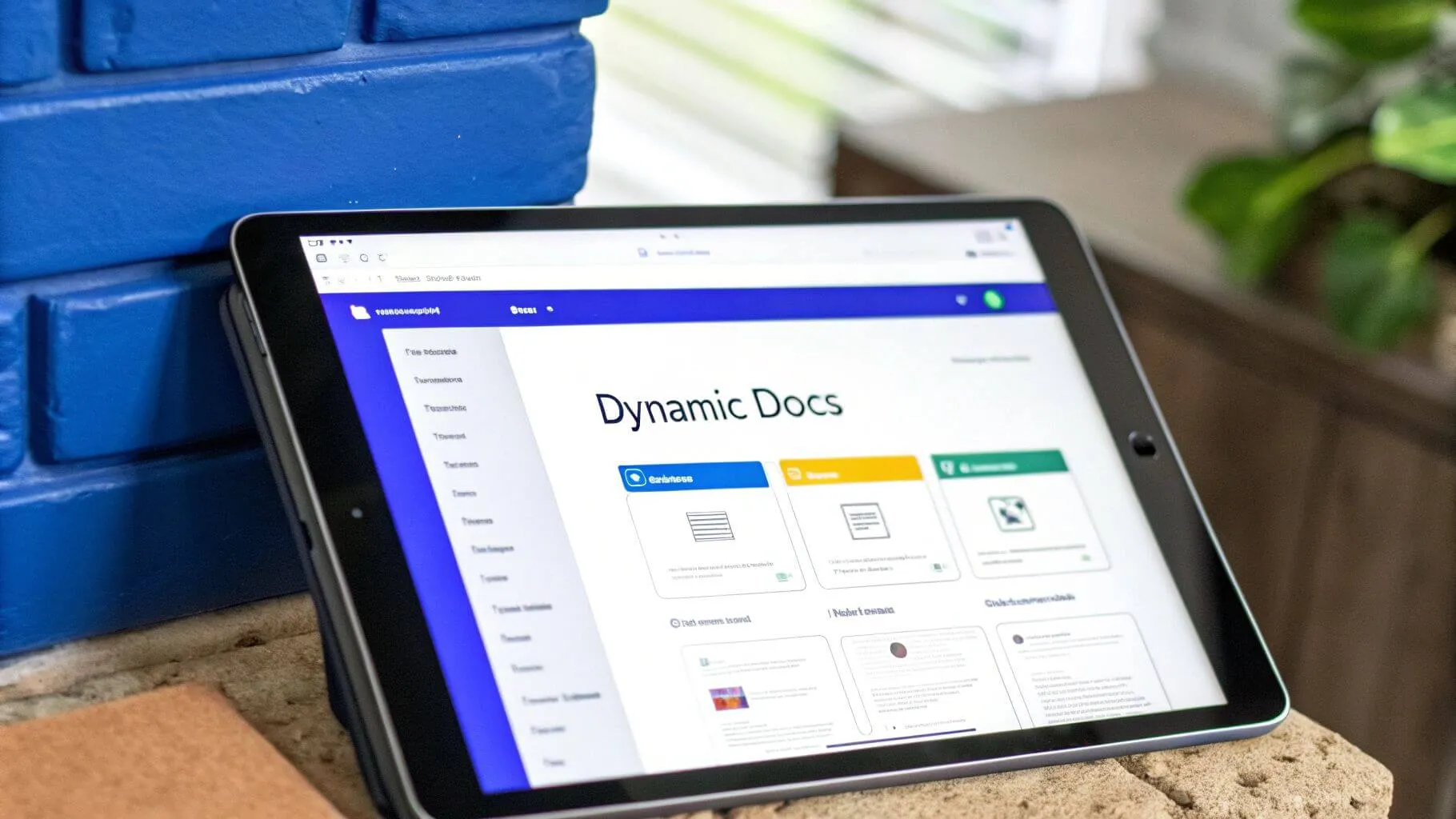
For teams seeking a robust and adaptable solution, Notion’s database approach stands out for providing a positive experience. If you’re considering various software options for creating training manuals, learn more about the best choices available. Notion’s flexibility allows it to serve as a centralized knowledge hub, housing everything from employee onboarding materials to complex technical documentation.
Notion databases offer distinct advantages for quick reference guides:
- Searchability: Quickly find specific information using Notion’s powerful search functionality for easy access.
- Dynamic Updates: Easily update information in real-time, ensuring everyone accesses the latest version.
- Interactive Elements: Embed videos, links, and other multimedia content to enhance engagement in a number of ways.
- Collaboration: Multiple users can contribute to and access the guides simultaneously.
- Customizable Views: Tailor the display of information based on different needs and preferences.
I’ve used Notion to create quick reference guides for diverse applications. For example, our engineering team uses a Notion database for API documentation. This allows for live code examples and version control, streamlining development workflows. Our customer support team utilizes a Notion database as a searchable knowledge base, improving response times and consistency.
Another impactful implementation involved creating a project management workflow guide. This provided real-time status updates and task assignments, improving team communication and project visibility. These examples showcase Notion’s versatility in different operational contexts.
Tips for Effective Quick Reference Guides with Notion
- Use Tags and Properties: Organize information with tags and properties for easy filtering and retrieval, including details to the right of the template.
- Template Buttons: Create template buttons for consistent formatting and streamlined content creation right of the template.
- Embed Multimedia: Enhance guides with relevant links, videos, and other multimedia.
- Automate Workflows: Leverage Notion’s database features to automate tasks and updates.
- Regular Maintenance: Keep information current through regular reviews and updates.
While Notion offers powerful features, it has some limitations. The free plan has usage restrictions, and the interface can be overwhelming for new users, leading to too much information at times. Offline access can be challenging, and complex formulas can require some learning.
Despite these limitations, Notion provides a powerful and flexible platform for creating and managing quick reference guides. Its database-centric approach allows for dynamic updates, enhanced searchability, and collaborative workflows, making it an invaluable tool for individuals and teams seeking to streamline knowledge access and improve operational efficiency.
Quick Reference Template Comparison
Choosing the Right Quick Reference Guide Template
Creating effective quick reference guides is crucial for any organization aiming to streamline operations, improve training, and boost productivity. This article explored several popular quick reference guide examples and template options, each with its own strengths and weaknesses. From the versatile Canva templates perfect for visually engaging guides to the structured Microsoft Word templates ideal for text-heavy procedures, the right choice depends heavily on your specific needs. With the rapid pace of today’s world, a well-designed quick reference guide empowers your team by providing easily accessible information, leading to fewer errors, faster onboarding, and consistent performance.
Key Considerations for Template Selection
Finding the perfect quick reference guide template hinges on several key factors. Consider these points before making your decision:
- Technical Skill Level: If your team lacks advanced design skills, user-friendly options like Canva or pre-built templates from Template.net are excellent choices. While considering the intricacies of a product, for those with design expertise, Adobe InDesign offers greater creative control.
- Collaboration Needs: If multiple team members need to contribute to the quick reference guide, collaborative platforms like Whale or Notion are a great way to allow for real-time editing and feedback.
- Content Type: Visual guides, like process flowcharts, benefit from platforms like Whale. Text-heavy instructions are better suited for Word or Notion, which offer robust text editing capabilities.
- Integration with Existing Tools: Assess whether the template integrates seamlessly with your existing software. For example, if your team primarily uses Microsoft Office Suite, Word templates might be the most practical option.
- Mobile Responsiveness: In today’s mobile-first world, ensure your chosen template renders correctly on various devices, allowing employees to access information on the go.
Making the Most of Your Quick Reference Guides
Beyond choosing the right template, consider these tips for maximizing the effectiveness of your quick reference guides:
- Keep it Concise: Focus on the most critical information that the user will need to accomplish a particular task. Avoid overwhelming your audience with unnecessary details or technical jargon.
- Use Visuals: Incorporate diagrams, flowcharts, and images to enhance understanding and engagement, as a good image can add value and clarity to your content.
- Regularly Update: Ensure your quick reference guides remain current and accurate. Establish a review process to incorporate feedback and reflect changes in processes or procedures.
- Accessibility: Design your guides with accessibility in mind, considering users with visual impairments or other disabilities.
Empowering Your Team with Effective Quick Reference Guides
Choosing the right quick reference guide template is an investment in your team’s success, just like how warming up garlic bread can elevate a meal. By providing clear, accessible, and up-to-date information, you empower your employees to perform their tasks efficiently and confidently, just like a fancy new stove simplifies cooking. This not only improves individual performance but also contributes to a more productive and successful organization. A well-crafted quick reference guide, utilizing the right template for your needs, transforms complex information into actionable knowledge, ultimately leading to improved outcomes across the board. Take the time to evaluate your specific needs and choose a template that will truly empower your team and contribute to your organization’s overall effectiveness.
Post you might like
Customer Service SOPs: The Ultimate Guide to Building High-Quality Support
SOP Writing Guidelines: How to Write Effective Standard Operating Procedures
How to Document Processes: A Step-by-Step Guide for Businesses
- Published: July 17, 2025
Last Updated: July 17, 2025
8,500 people are already signed up to receive expert advice on unlocking growth. Wanna join them?
Bram Billiet, is the Co-founder and Chief Product Officer at Whale. His obsession for building the product is matched matched only by his love for conquering levels in Mario Brothers.