
Document
Whale Video Screen Recorder
Hours of writing. Minutes of recording.
Record your screen and narrate as you go. Alice, Whale’s AI assistant, turns it into a written step-by-step guide straight away. Time spent equals time to do the process.
- 4.8/5 on G2
- SOC 2 certified









The problem
Some processes are easier to show than to write
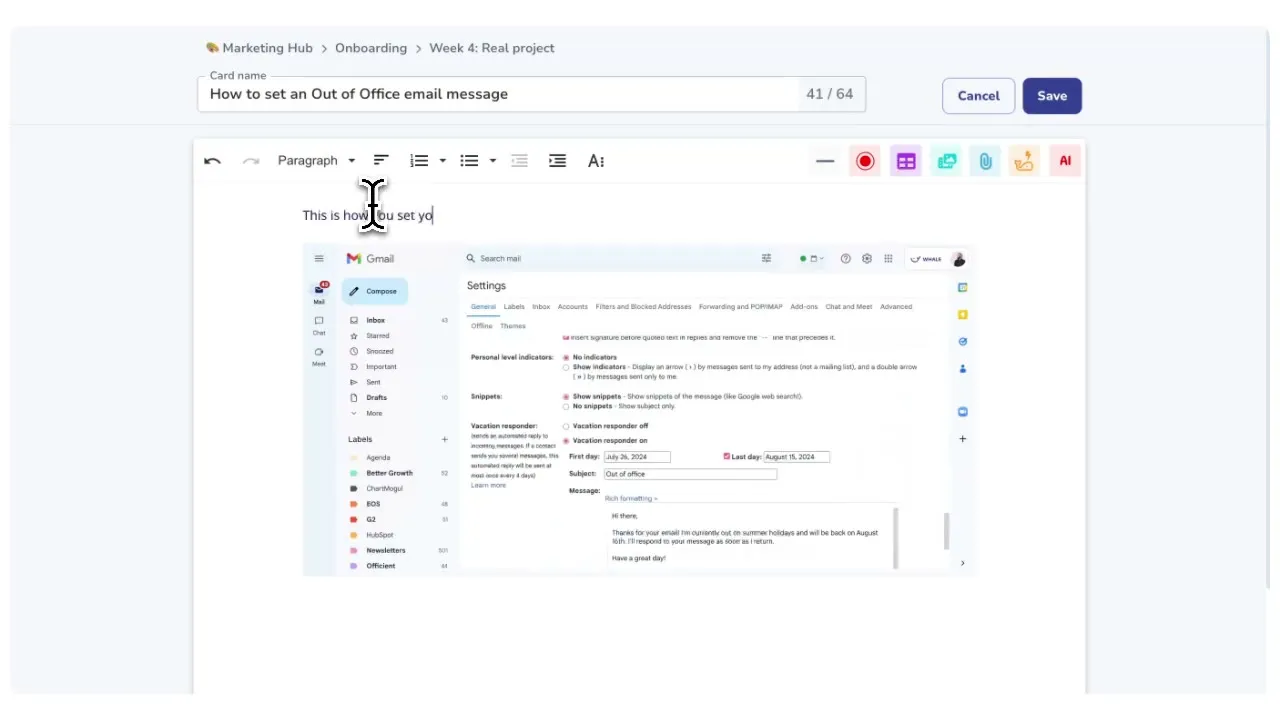
You already run the process every week. Record your screen and narrate as you go, and Alice, Whale’s AI assistant, produces the written step-by-step guide from the recording.
How teams do it today: Scheduling calls to walk someone through a workflow
With Whale's Video Screen Recorder: Record your screen and voice in the Whale editor
How teams do it today: Writing long instructions for a 2-minute walkthrough
With Whale's Video Screen Recorder: Video plus a written step-by-step guide, generated automatically
How teams do it today: Paying for a separate video recording subscription
With Whale's Video Screen Recorder: No extra subscriptions or tools needed
How teams do it today: Videos scattered across folders and email threads
With Whale's Video Screen Recorder: All your recordings live inside the Whale knowledge base
Record straight from the Whale editor
Open any Whale card and hit the record button. Capture your screen and audio, then Alice, Whale’s AI assistant, generates a written step-by-step guide automatically.
Start for Free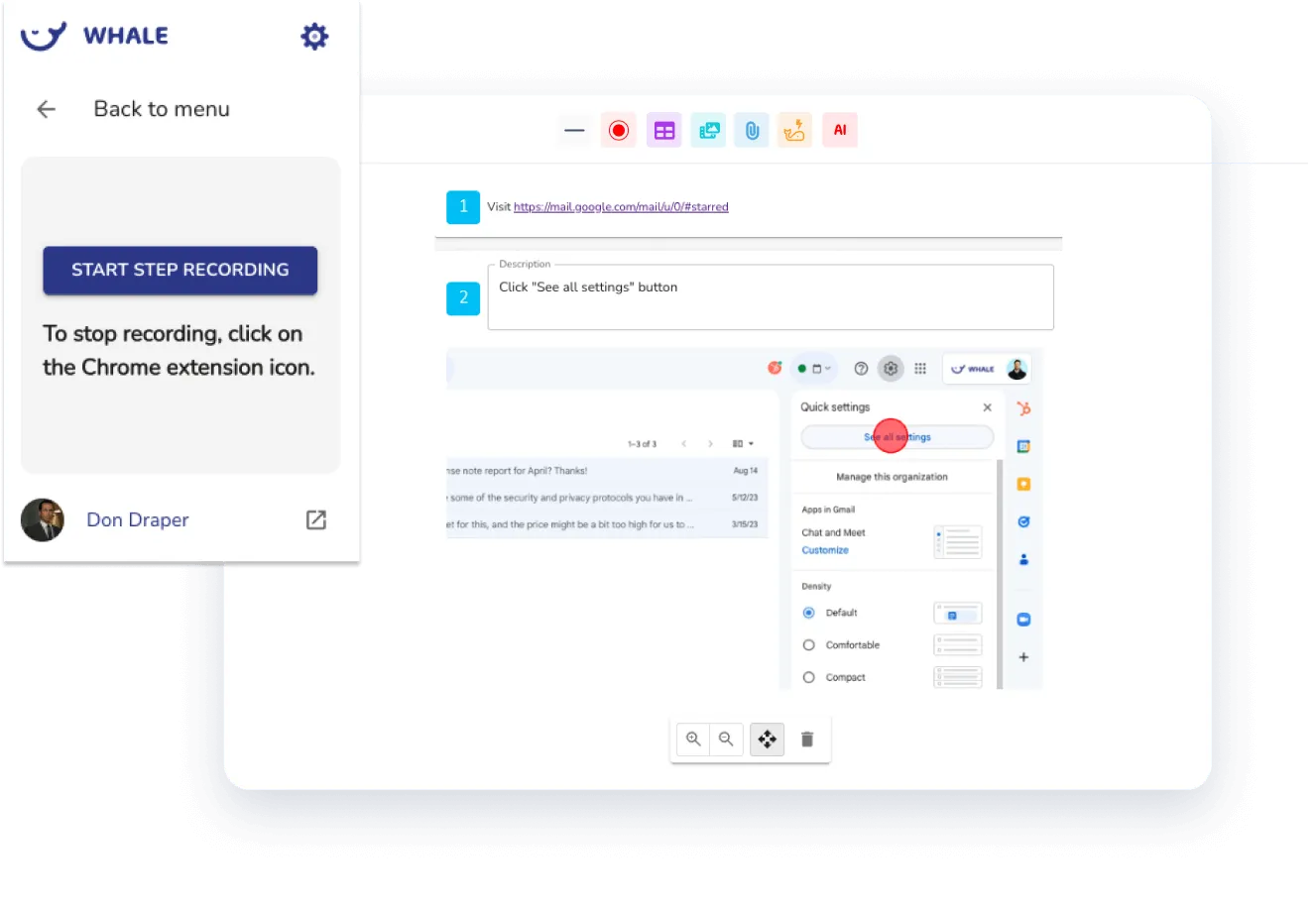
The recording becomes the video and the guide
When you stop recording, Alice, Whale’s AI assistant, turns the audio into a numbered step-by-step guide. The video stays embedded alongside the written steps, so your team can watch or read.
Start for Free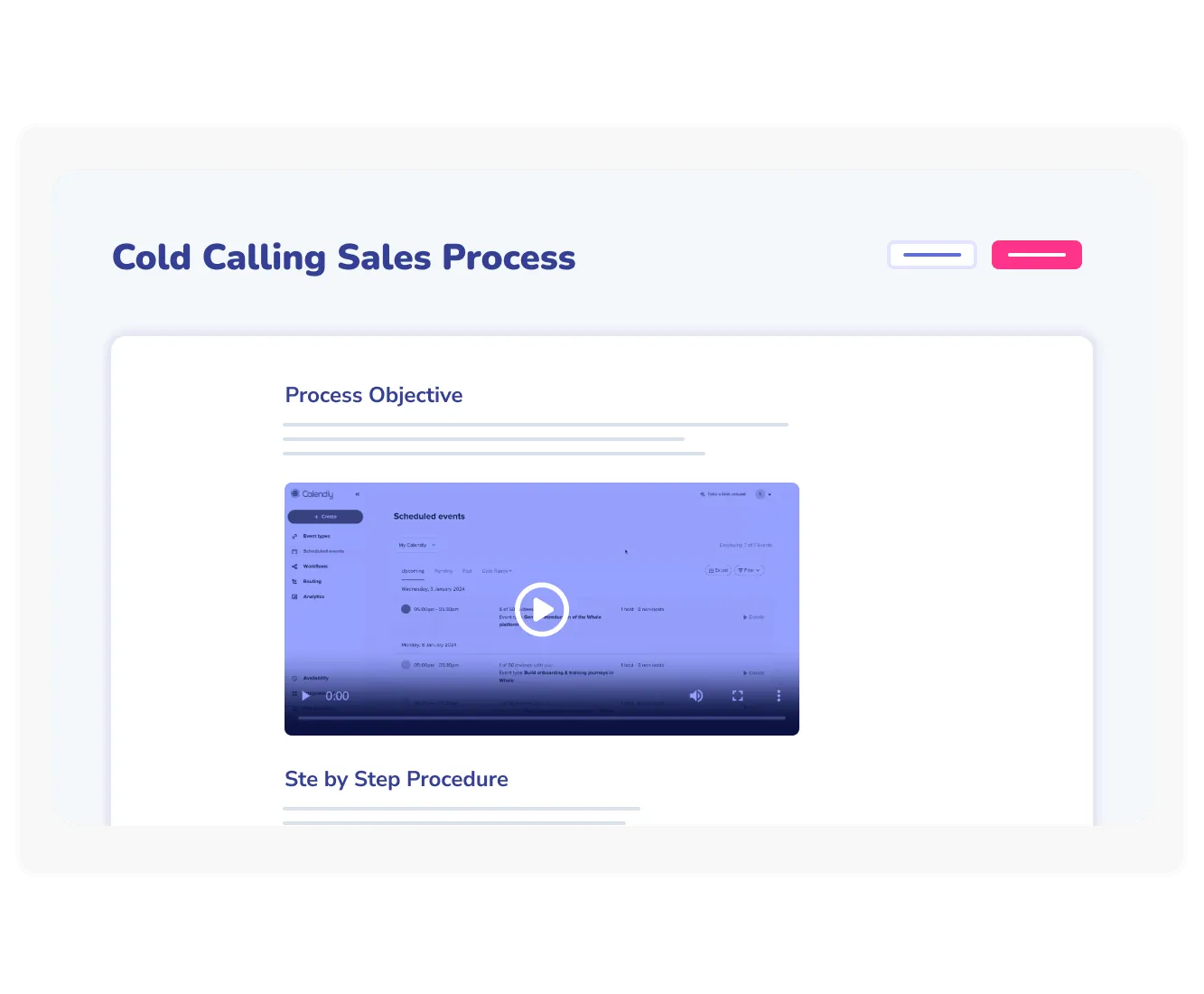
Built into Whale, part of the training system
The screen recorder lives inside Whale at no extra cost.
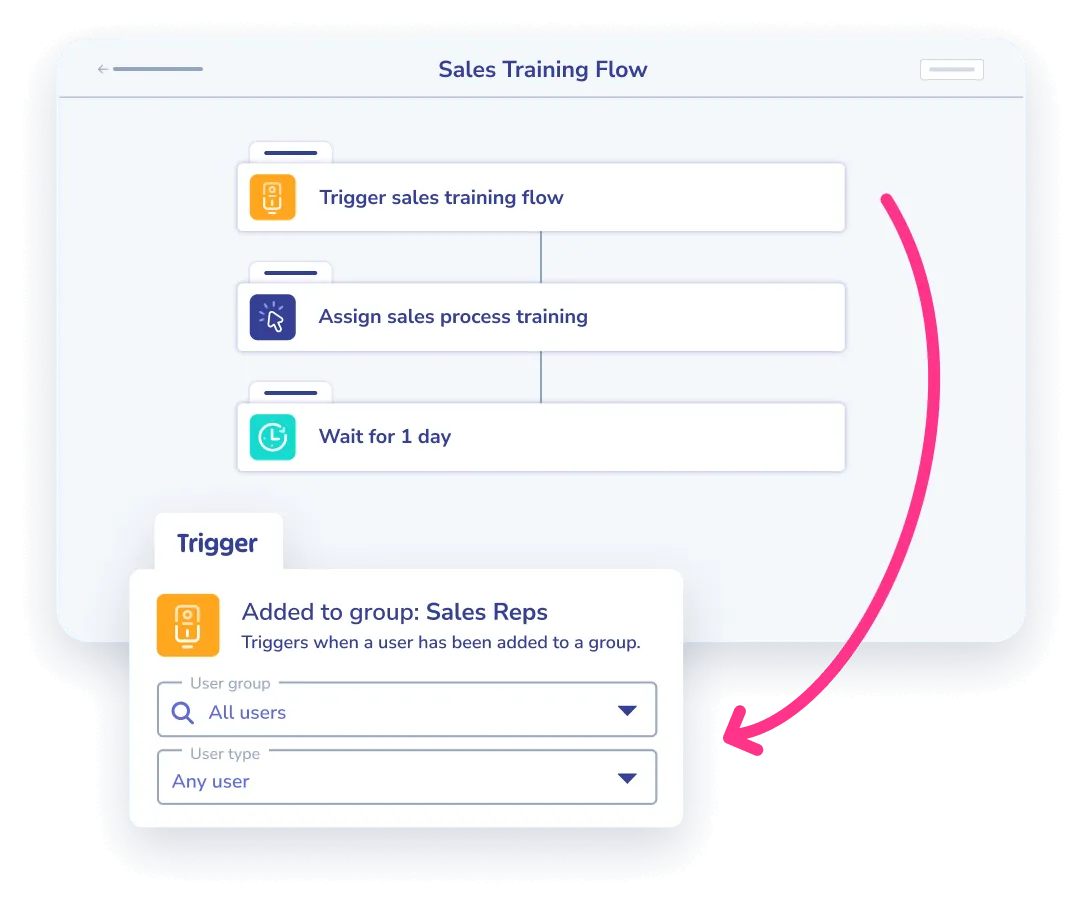
- The guide lands in your knowledge base, where you can add it to a training flow or let CoPilot surface it in context.
- Alice, Whale’s AI assistant, can answer questions pulled from the guide.
How it works
- 01
Hit record and run through your process
Open a Whale card, click the record button in the editor toolbar, and run through your process as you would any other day. Your screen and audio are captured.
- 02
Video and written guide, both ready instantly
When you stop recording, the video is embedded in the card and Alice, Whale’s AI assistant, has a written step-by-step guide ready for you to review. Edit any step before you publish.
- 03
Share it with your team in one click
Publish the card. Assign it to team members with a due date, or let CoPilot surface the guide inside the tool where the process runs.
In their own words
Loved for its overall simplicity and support
“Exceptional Tool for Business Knowledge”
Whale is excellent to document and organize business knowledge. Their AI makes it even easier!
Lyndon S.Small-Business (0-50 emp.) “Whale Keeps Work Organized and Teams Confident”
Whale unifies documentation, training, and reviews in one ecosystem.
Verified User in AccountingMid-Market (51-1000 emp.) “Screen Recorder Transformed Our Productivity”
All features are excellent, but the Screen Recorder has boosted productivity for our company.
Andres A.Enterprise (> 1000 emp.) “User-Friendly Platform with Great Features”
Whale is very user-friendly. "Alice" has been a game changer, makes finding information effortless.
Martha Y.Mid-Market (51-1000 emp.) “Intuitive, fresh and easy!”
Whale's clean layout makes building and navigating SOPs a breeze.
Harley B.Small-Business (0-50 emp.) “Productivity Unleashed!”
Managing and write SOP versions, assign them, track progress through a dashboard, and automate revision tracking.
Verified User in FarmingMid-Market (51-1000 emp.) “My company utilizes Whale for our SOP’s and FAQ’s.”
Everything is very easy to locate and the search bar is my favorite feature. When I need a quick answer I turn to Whale to find what I am looking for.
Georgia R.Mid-Market (51-1000 emp.) “Whale Streamlined Our Processes and Boosted Team Onboarding”
Whale transformed how we manage internal processes. Documenting SOPs is fast and we can build and share training materials in minutes, making onboarding significantly more efficient.
Fábio B.Enterprise (> 1000 emp.) “Whale Keeps Department Training Organized with Boards, Libraries, and Playbooks”
Boards, Libraries, and Playbooks keep training organized by department, so you can generate videos, SOPs, quizzes, and more for each topic.
Ketan T.Mid-Market (51-1000 emp.) “Streamlines Documentation with Ease”
I use Whale for company handbooks, regulations, how-to's, and manuals, all on one platform. The step-by-step screen recorder auto-captures screenshots and saves me about an hour per guide.
Anouk V.Mid-Market (51-1000 emp.) “Effortlessly Streamlines Team Training with Solid Support”
Whale supports training my merchandising teams with AI and video features that break down training step by step. Creating training flows is easy, and quizzes ensure the material lands.
Shelley F.Mid-Market (51-1000 emp.) “Effortless SOP Management with Stellar AI Search”
Whale centralizes all our SOPs with standard formatting and makes them easy to find, especially with the fast AI search across thousands of documents.
Jitender T.Small-Business (50 or fewer emp.)
Frequently Asked Questions
Start for Free01Do I need to install any software to use the screen recorder?
No installation required. The screen recorder is built into the Whale web app and runs in any modern browser. There is no desktop app to download and no plugin to install. If you can log into Whale, you can start recording your screen in seconds. This works on Windows, macOS, Linux, and Chromebook, so any device that runs a modern browser is supported. Browser permissions for screen capture are requested the first time you record, and after that recording starts with one click.
02Can I record my voice along with my screen?
Yes. When you start a recording, you can enable microphone audio to narrate as you walk through the process. Your voice is captured alongside the screen video, so the finished recording has both visual and spoken context. Alice, Whale’s AI assistant, uses the audio to generate the written step-by-step guide, which means your spoken explanations become the text of the guide. If you prefer a silent recording, turn the microphone off before you start. Webcam recording is not supported today. The recorder captures your screen and audio only.
03Where are my recordings stored?
All recordings are stored securely within your Whale workspace on encrypted servers. When you finish a recording, it is automatically attached to the Whale card you created it in, so you never have to manage file uploads or separate video hosting. Your team can access any recording by opening the card, and the video streams directly inside the Whale interface. Recordings are included in your Whale plan at no extra cost, and there are no separate storage limits or bandwidth charges for playback. You can delete any recording from the card, and version history tracks changes if you replace a video.
04Who can access the videos I record?
You control access at the card level. Recordings inherit the permission settings of the Whale card they live in, so you can share them with specific teammates, specific teams, a board of cards, or your entire organization. Private recordings stay visible only to you until you choose to share. When you publish a card to a training flow, everyone assigned to that flow can watch the recording as part of their training. External sharing links can be generated for people outside your organization if you need to show a process to a partner or client. All access can be revoked at any time, and the Advanced Permissions add-on gives you finer-grained controls for regulated environments.
05How long can a screen recording be?
Screen recordings can be up to 10 minutes per recording. For most training walkthroughs, 3 to 5 minutes produces the tightest guide, short enough to stay focused and long enough to cover a full process. If a process takes longer than 10 minutes to demonstrate, the cleanest approach is to break it into topic-based recordings that each cover one logical step. Each recording becomes its own Whale card, which is easier for your team to find and revisit than a single long video.
06How is Whale's screen recorder different from Loom?
Loom records your screen and hosts the video. Whale’s screen recorder does that too, but it goes a step further: Alice, Whale’s AI assistant, automatically turns the recording into a written step-by-step guide that sits alongside the video. Your team gets both formats from one recording, and the guide is searchable and editable. Whale’s recorder is also built into the same platform as your SOPs and training flows, so you do not need to pay for a separate Loom subscription and bounce between tools. Every Whale plan, including the free tier, includes the screen recorder at no extra cost.